

User Guides
Learn how to get the most out of ONLY BLV apps with step-by-step guides for every feature.
![T[root]H Discipleship](troothdiscipleship_icon.png)
T[root]H Discipleship
Available Now![T[root]H Accountability](Accountability_icon.png)
T[root]H Accountability
Available Now![T[root]H Armory](trooth_armory_icon.png)
T[root]H Armory
Available NowGetting Started
Create your account
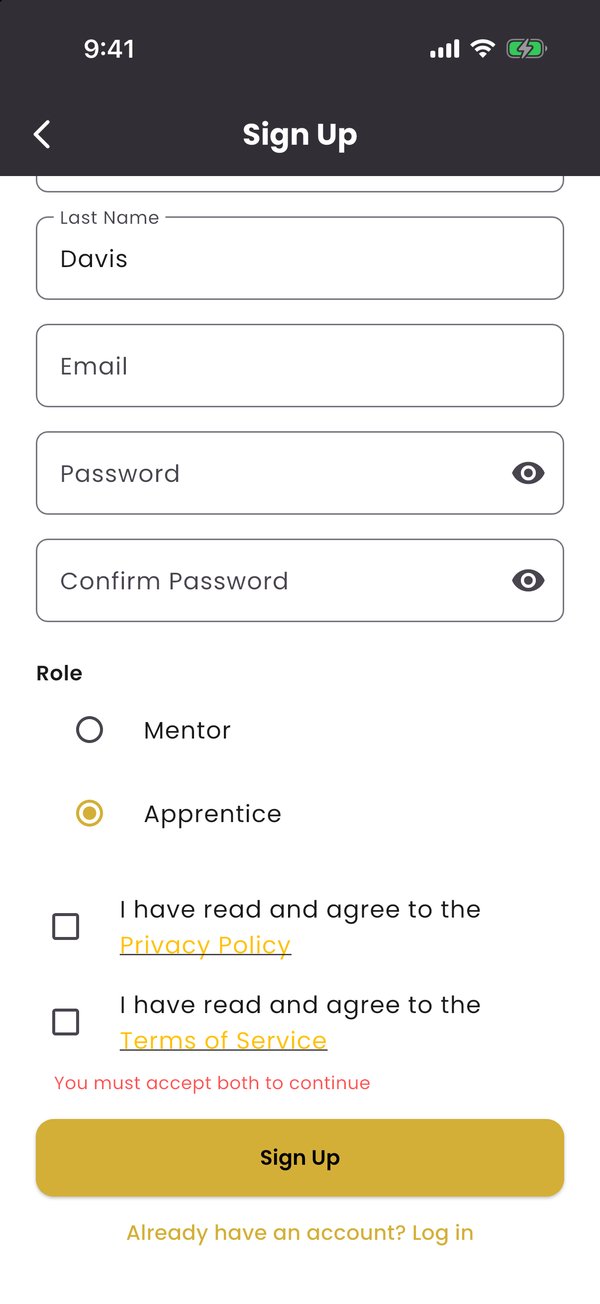
Download T[root]H Discipleship from the App Store or Google Play, open it, and tap "Don't have an account? Sign up". You can also continue with Google or Apple.
- Enter your first and last name, email, and a password
- Under Role, choose Apprentice
- Agree to the Privacy Policy and Terms of Service, then tap Sign Up
Your Dashboard
Your home base for growth
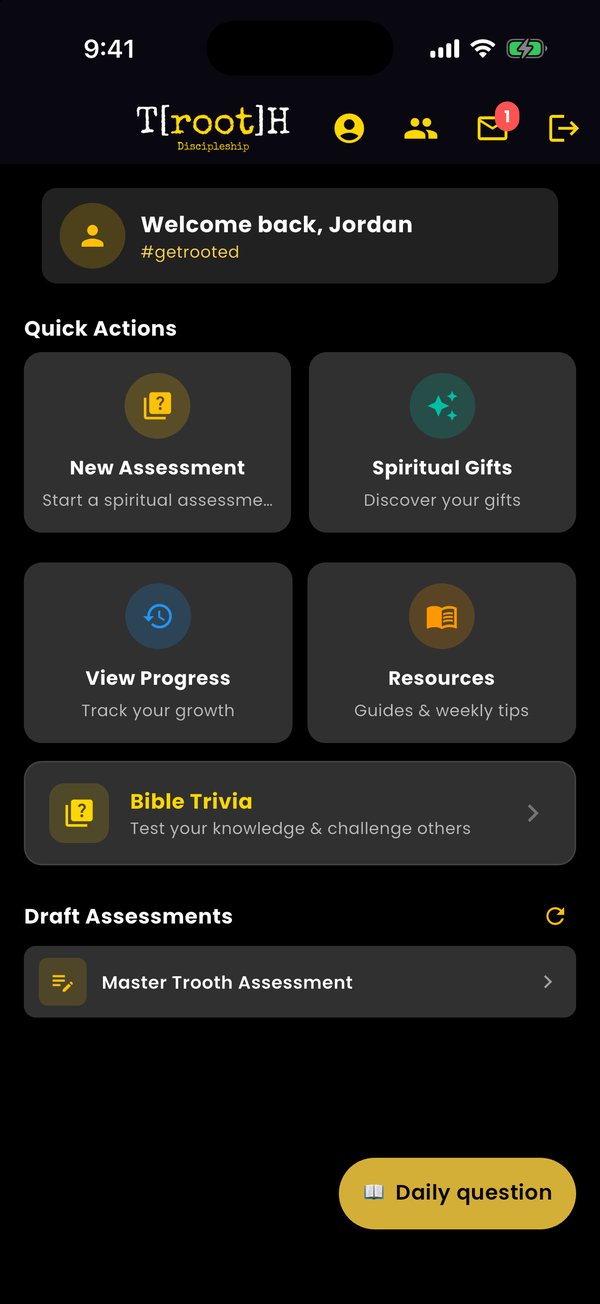
Everything starts from the dashboard:
- Quick Actions: New Assessment, Spiritual Gifts, View Progress, and Resources
- Bible Trivia: test your knowledge and challenge others
- Draft Assessments: pick up any assessment you started but haven't submitted
- Top icons: your profile, your mentor & agreements, invitations (a red badge means one is waiting), and sign out
- Daily question: the gold button answers today's trivia question and keeps your streak going
Connecting with a Mentor
Accept an invitation
When a mentor invites you, the envelope icon on your dashboard shows a badge.
- Tap the envelope to open Mentor Invitations
- Tap Accept Invitation (or Decline). Invitations expire after 7 days
- Tap the people icon any time to see your mentor, notes and resources they've shared, and your mentorship agreements

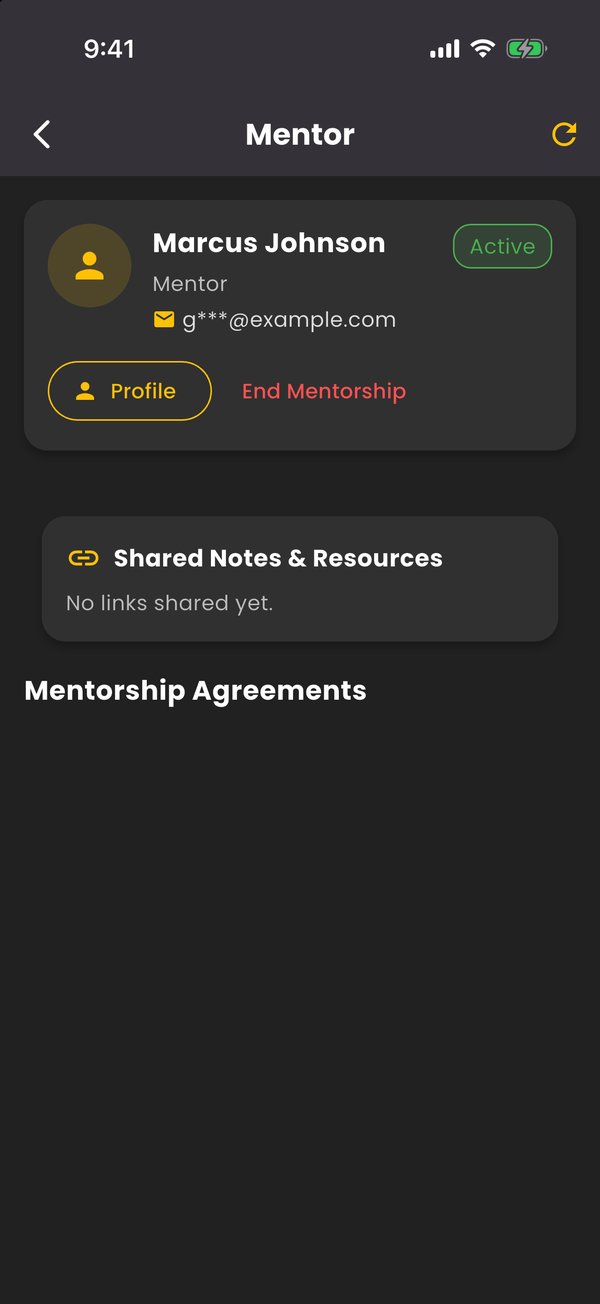
Once you're connected, your mentor can see your assessment results and walk with you through your next steps.
Taking an Assessment
Answer honestly, at your own pace
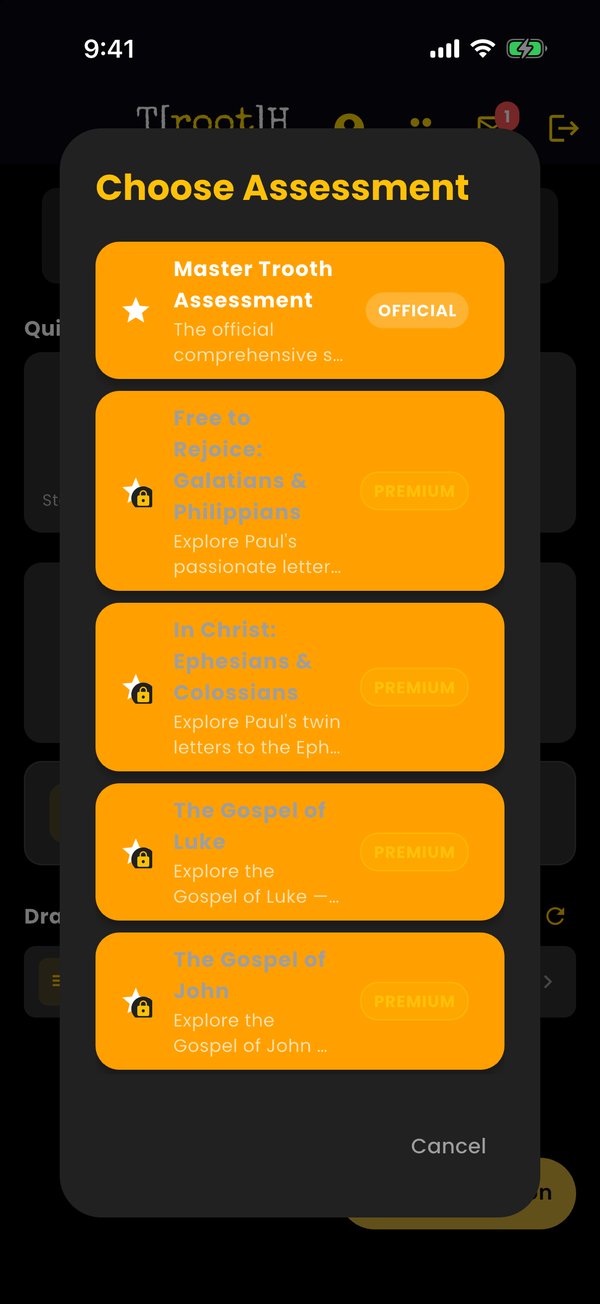
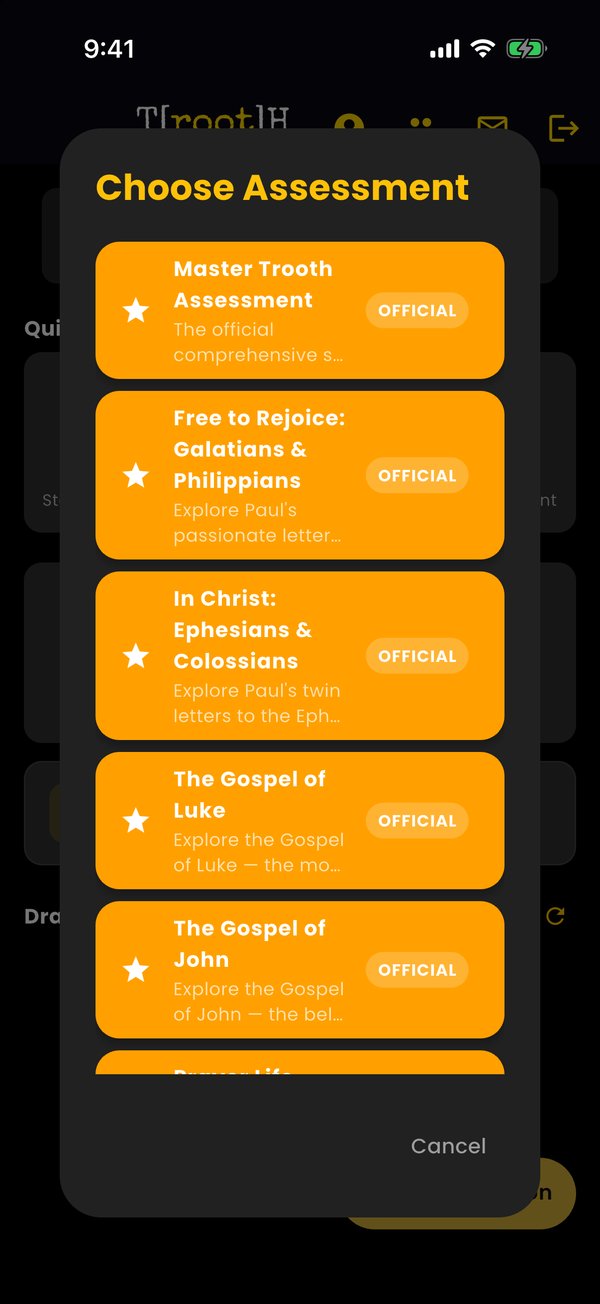
- Tap New Assessment and choose one. The Master T[root]H Assessment is free; book and topic assessments are included with Premium
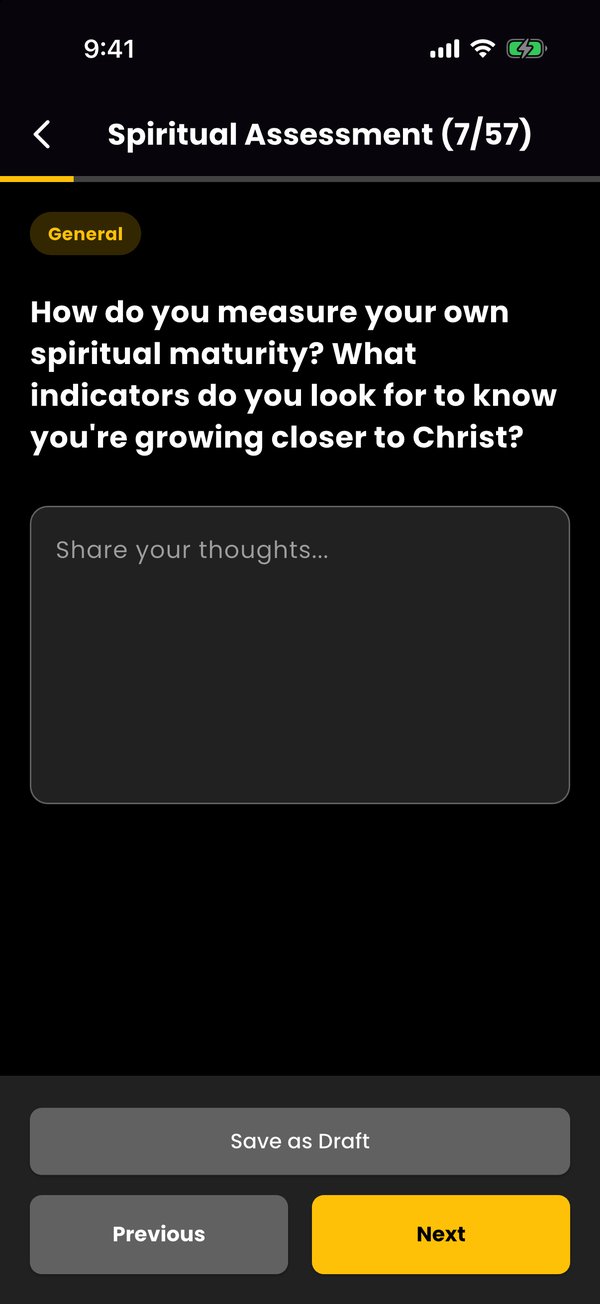
- Answer each question. Some are multiple choice, some ask you to write a short reflection
- Use Next and Previous to move around, and Save as Draft to finish later
- Submit on the last question. Your results are ready within a few minutes
Understanding Your Results
Your health score and next step
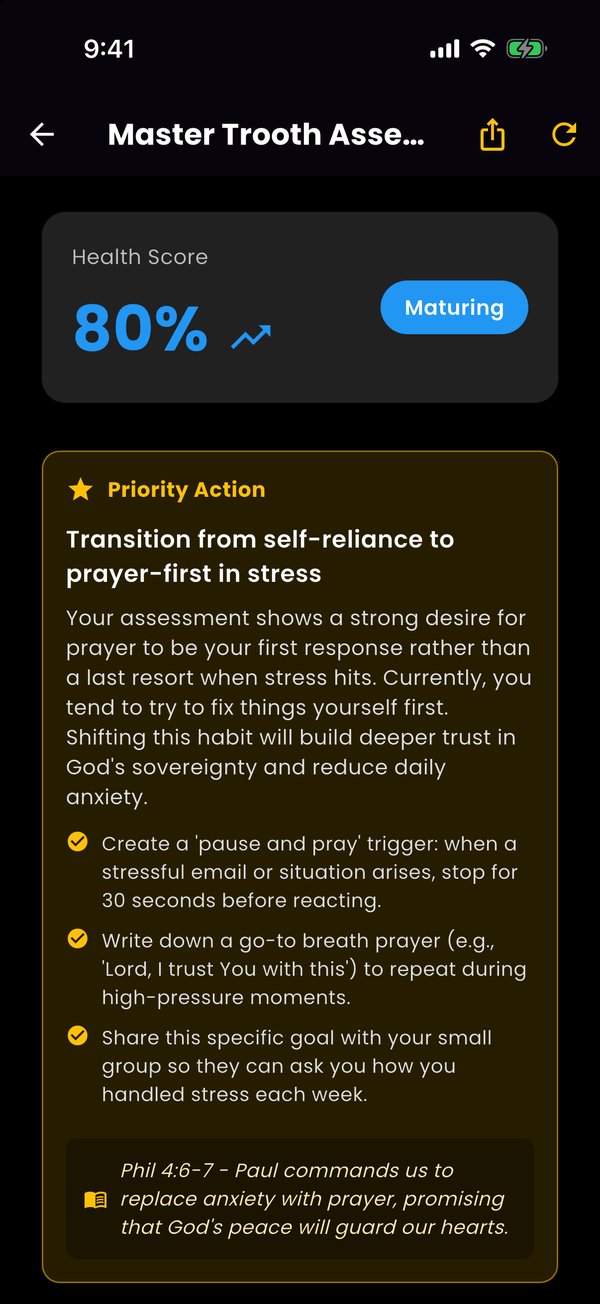
Open a completed assessment from View Progress. Every report includes:
- Health Score: an overall picture of where you are, from Beginning to Maturing
- Priority Action: one clear next step, practical ways to start, and a Scripture to anchor it
- Strengths and Areas to Grow, drawn from your own answers
- Spiritual Insights for each area, with a next step for each
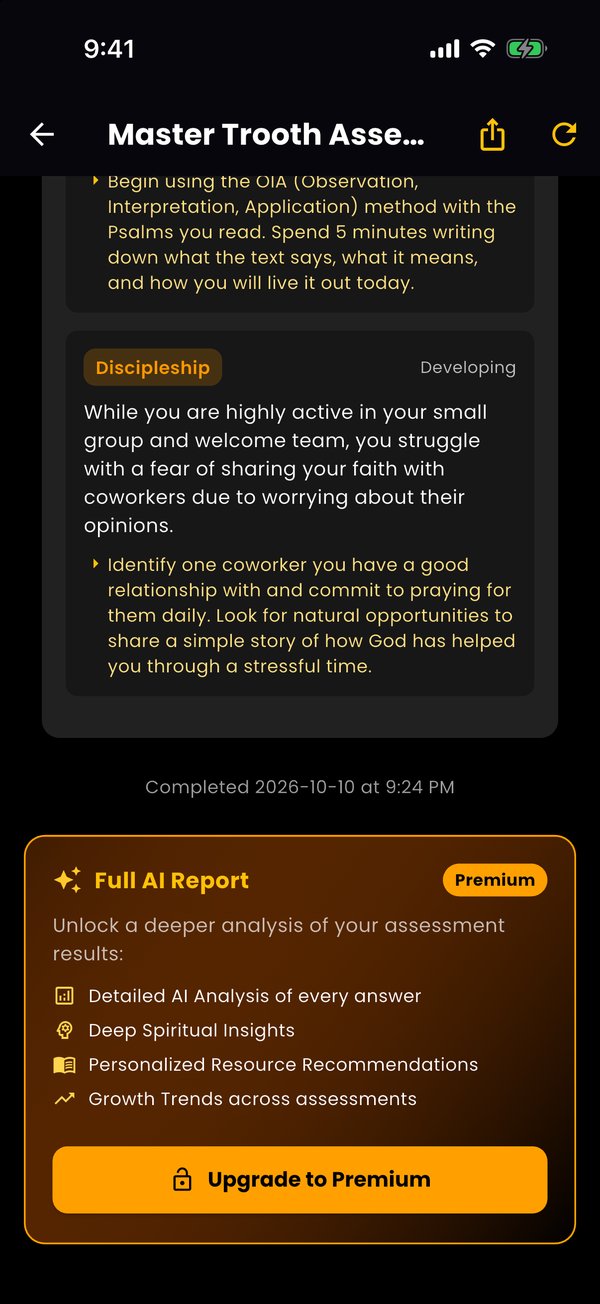
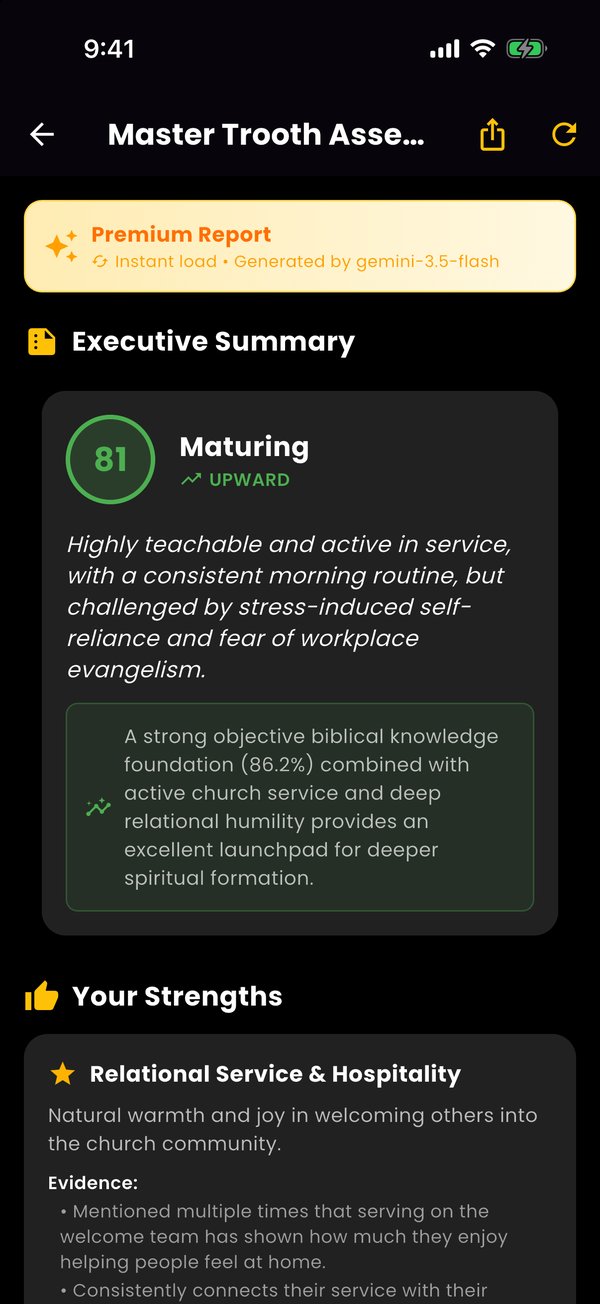
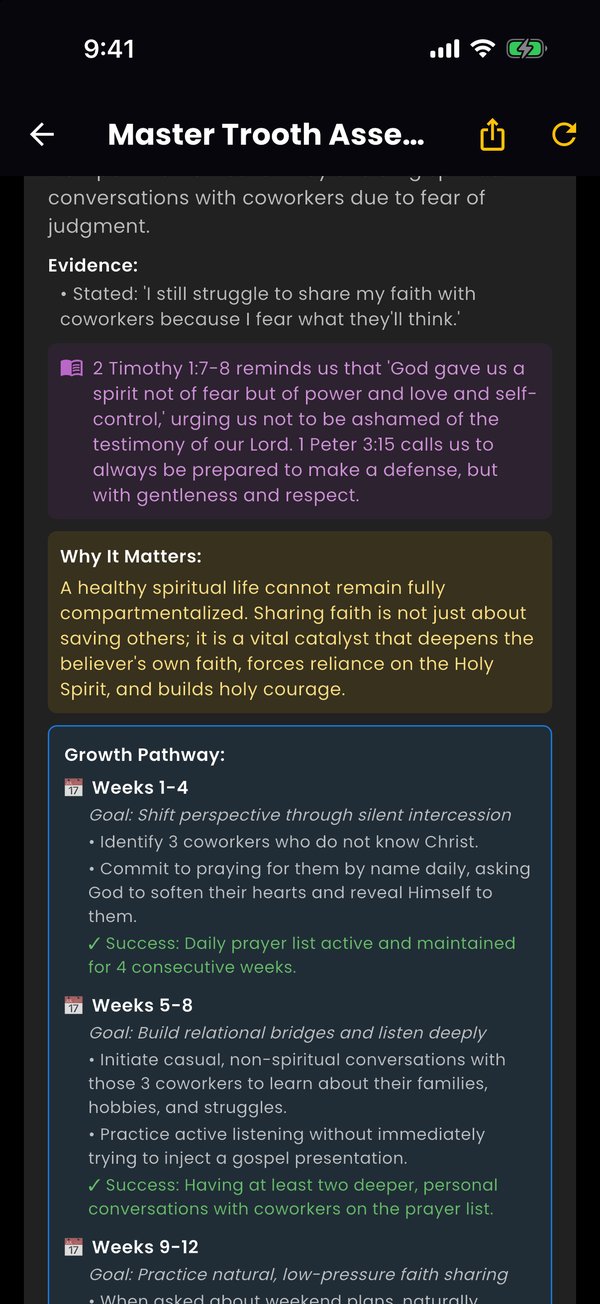
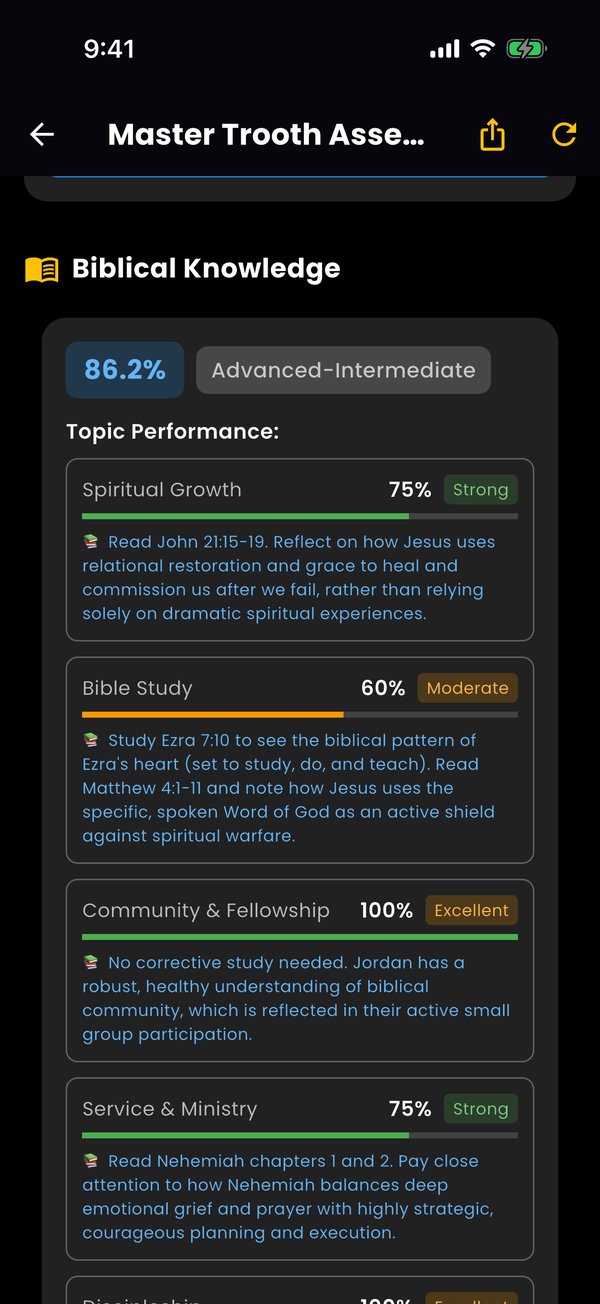
With Premium, the report expands into a full AI report: an executive summary, a deeper look at each strength and growth area with the evidence behind it, a 12-week growth pathway, and your biblical knowledge by topic.
Discovering Your Spiritual Gifts
See how God has equipped you
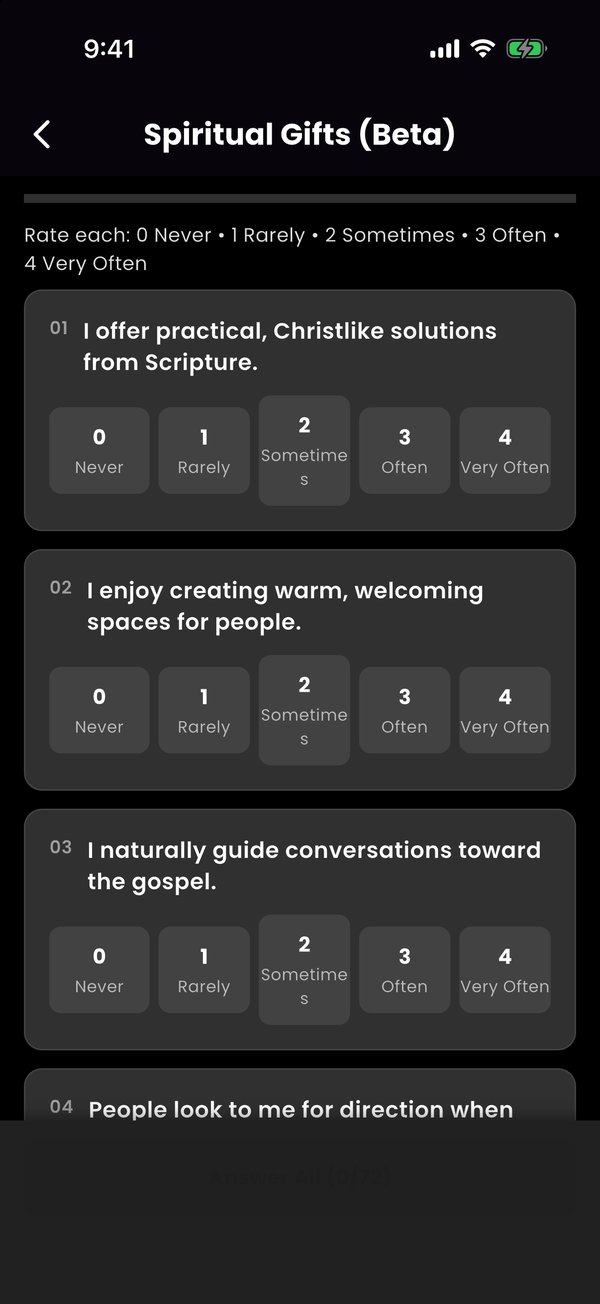
- Tap Spiritual Gifts on your dashboard, read the short note, and tap Begin
- Rate each of the 72 statements from 0 (Never) to 4 (Very Often)
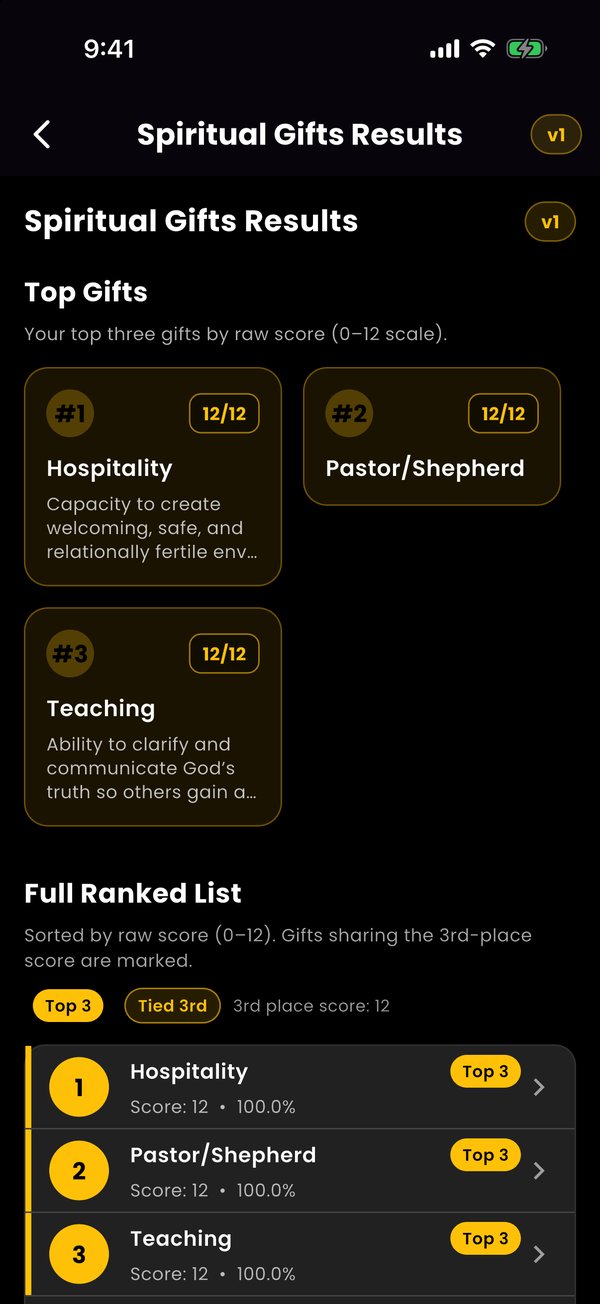
- See your top three gifts and the full ranked list, and tap any gift to learn more
- Tap Spiritual Gifts again later to view your latest results, see your history, or retake it
Tracking Your Progress
See your growth over time
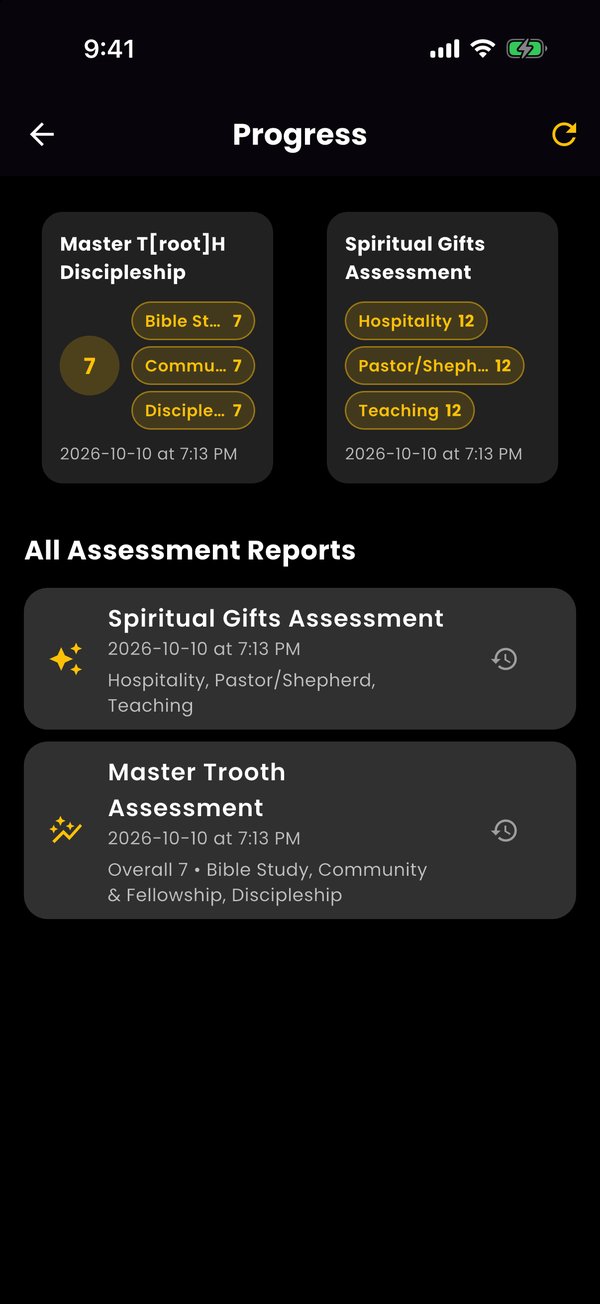
Tap View Progress to see your latest scores at the top and every report below. Tap a report to open it, or the history icon to compare past results.
Resources & Prayer Journal
Guides, weekly tips, and prayer
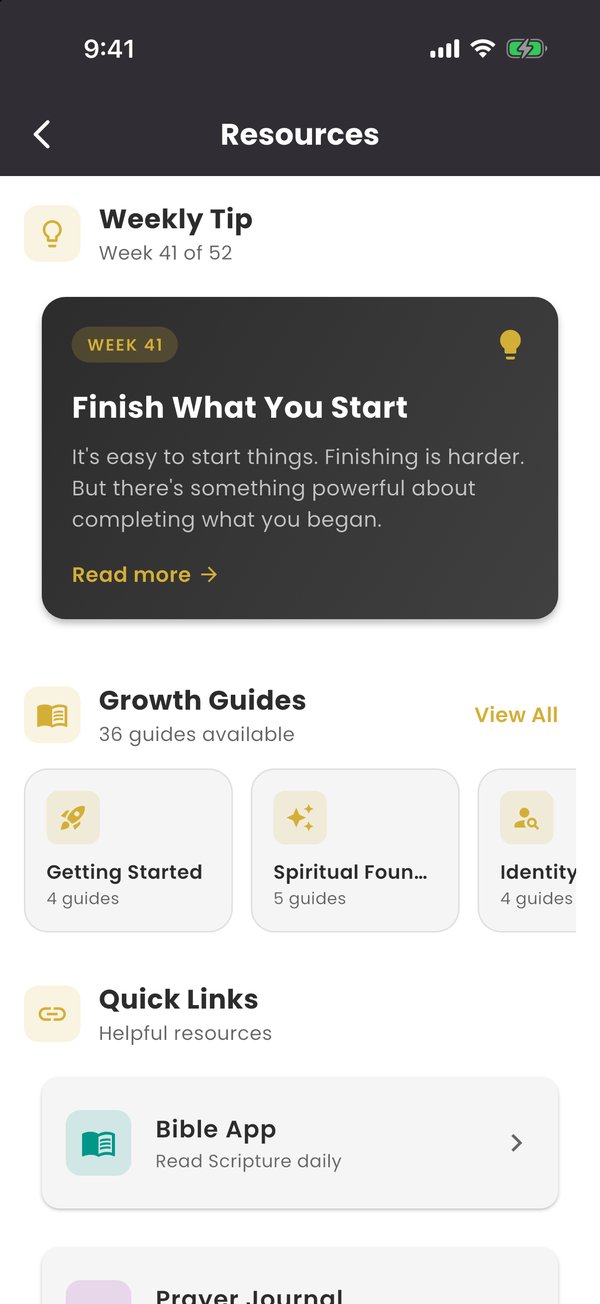
Tap Resources on your dashboard for:
- Weekly Tip: a new encouragement each week
- Growth Guides: short guides grouped by topic
- Quick Links: Bible App, Prayer Journal, and Worship Music
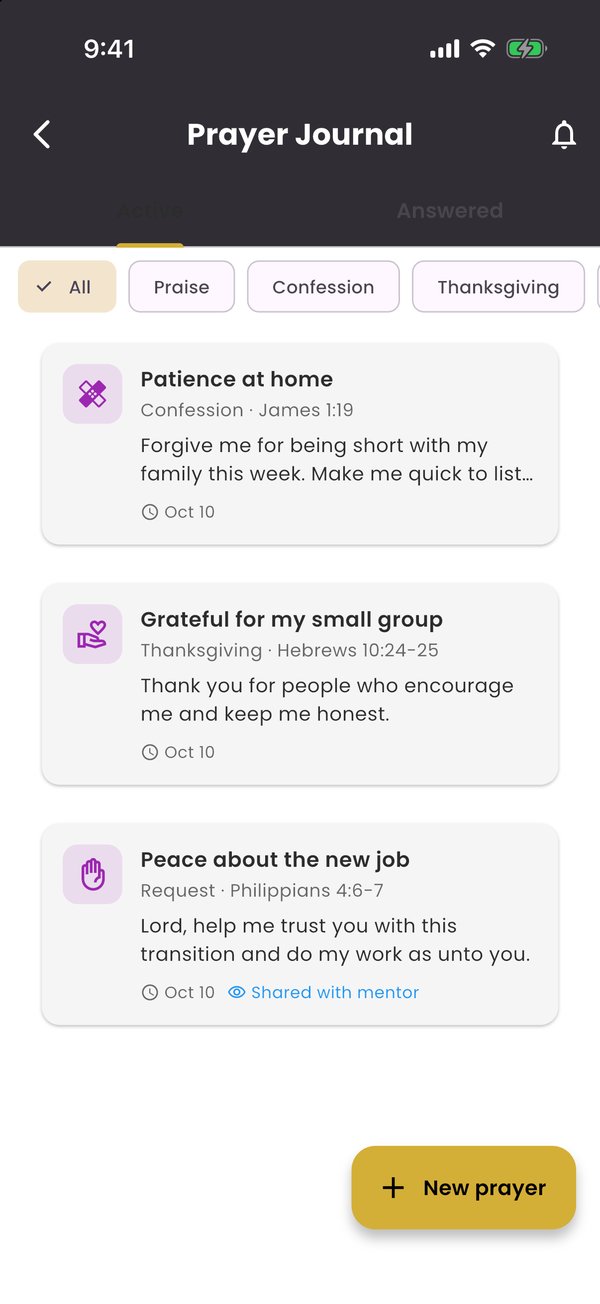
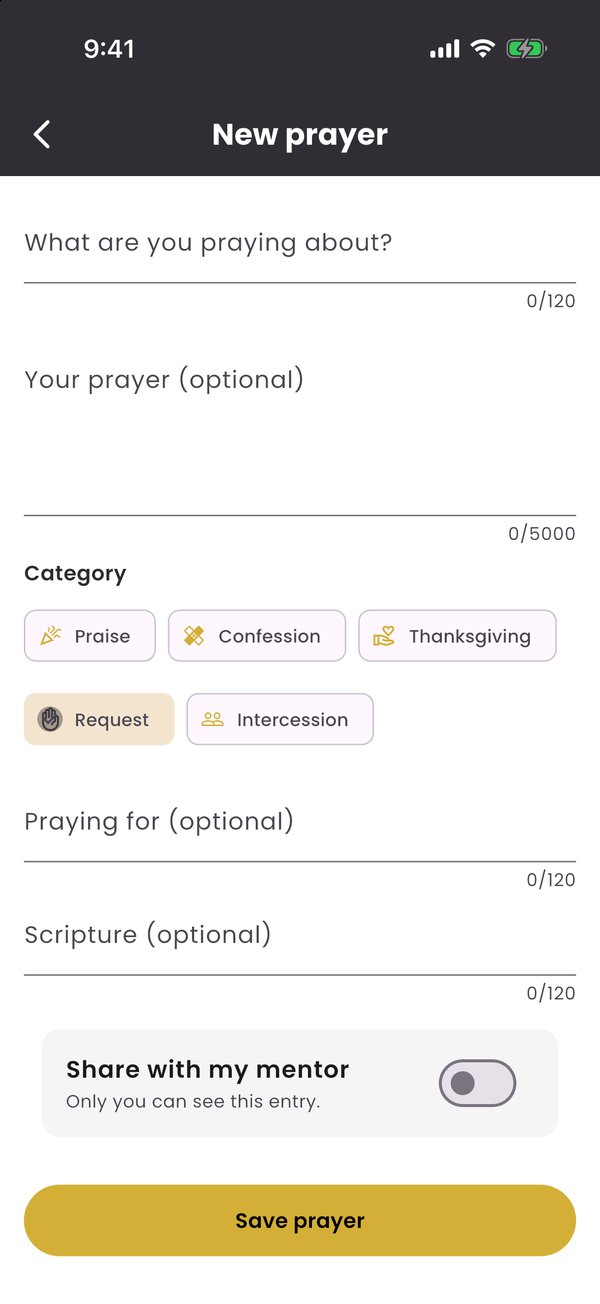
In the Prayer Journal, tap New prayer to write one, choose a category (Praise, Confession, Thanksgiving, Request, or Intercession), and add who you're praying for or a Scripture. Turn on Share with my mentor if you'd like them to pray with you. Mark prayers as answered to look back on God's faithfulness.
Bible Trivia
Daily questions and friendly competition
Tap Bible Trivia on your dashboard:
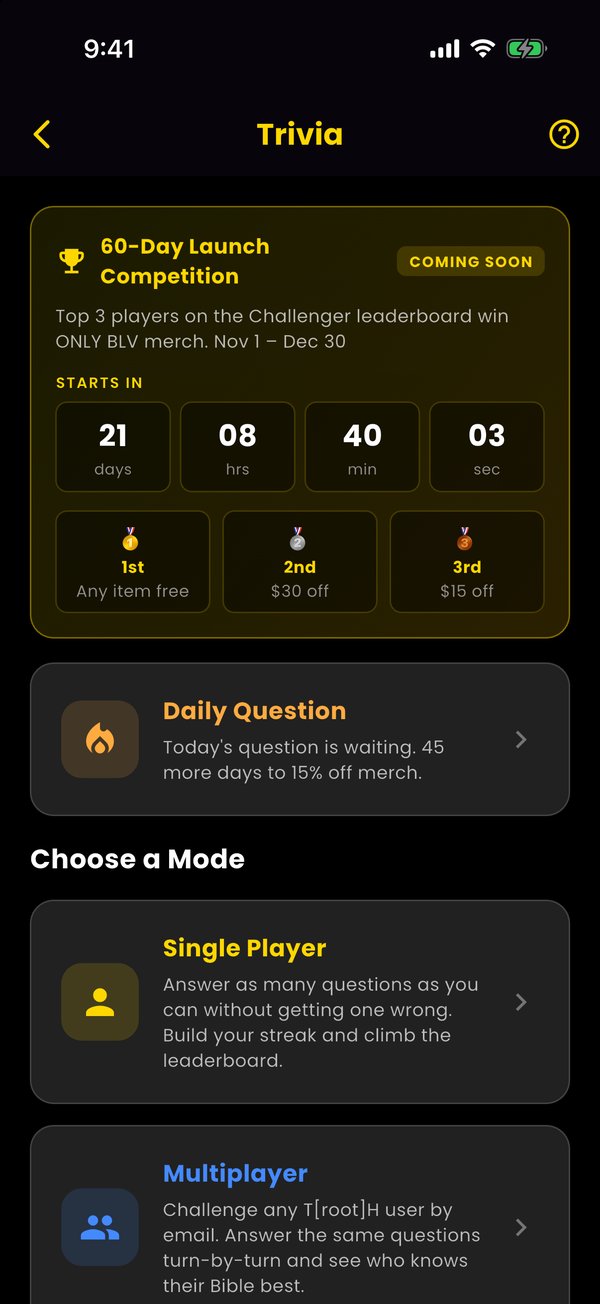
- Daily Question: one question a day. Answer daily to build a streak
- Single Player: answer as many as you can without a miss and climb the leaderboard
- Multiplayer: challenge any T[root]H user by email and take turns answering the same questions
- Watch for competitions with prizes for the top players
Your Profile & Premium
Manage your account
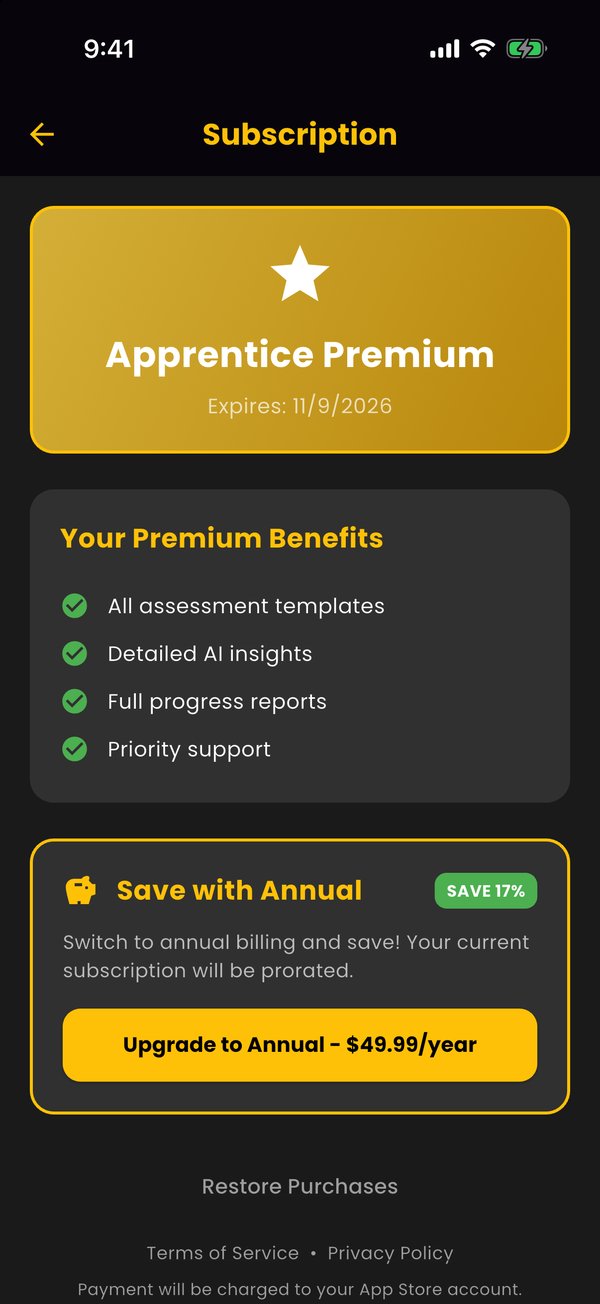
Tap the profile icon to see your account, your plan, your daily question streak, and support. Tap Subscription to upgrade to Apprentice Premium:
- All assessment templates, including book and topic studies
- Detailed AI insights and full progress reports
- Priority support
Your mentor can also gift you a Premium seat.
Getting Started as a Mentor
Create your account
Download T[root]H Discipleship and tap "Don't have an account? Sign up" (or continue with Google or Apple). Enter your name, email, and password, and choose Mentor as your role.
Your Mentor Dashboard
See your apprentices at a glance
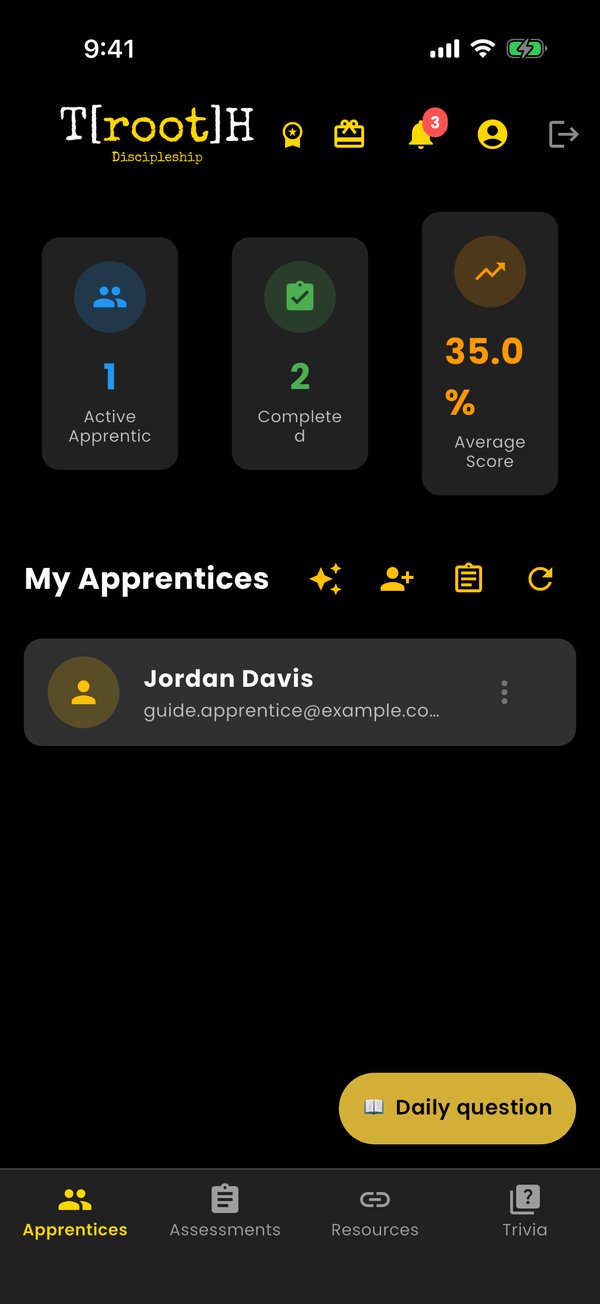
- Stats: active apprentices, completed assessments, and average score
- My Apprentices icons: spiritual gifts, invite an apprentice, manage assessment templates, and refresh
- Top icons: alerts when apprentices submit assessments or need attention, your profile, and (with Premium) gift seats
- Bottom tabs: Apprentices, Assessments, Resources, and Trivia
Inviting Apprentices
Connect with the people you disciple
- Tap the person+ icon next to My Apprentices
- Tap Send Invite and enter the apprentice's name and email
- They'll get an email and see the invitation in the app. Pending invites are listed here until accepted
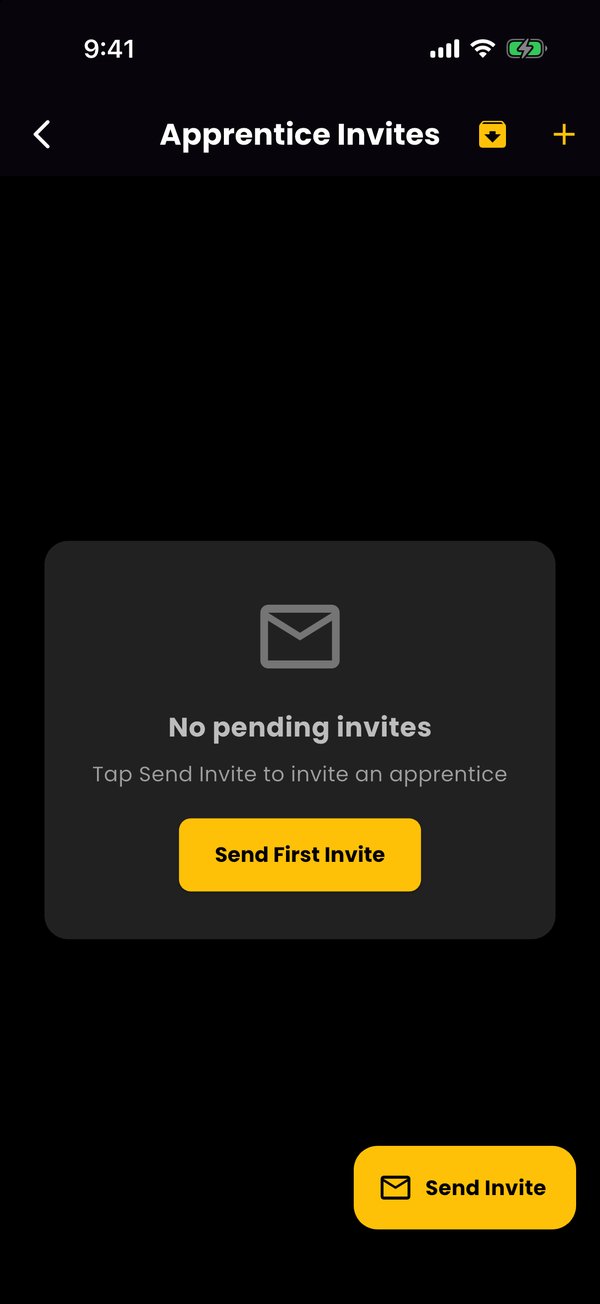
The free plan includes one apprentice. Premium mentors can mentor as many as they like.
Working with an Apprentice
Everything in one menu
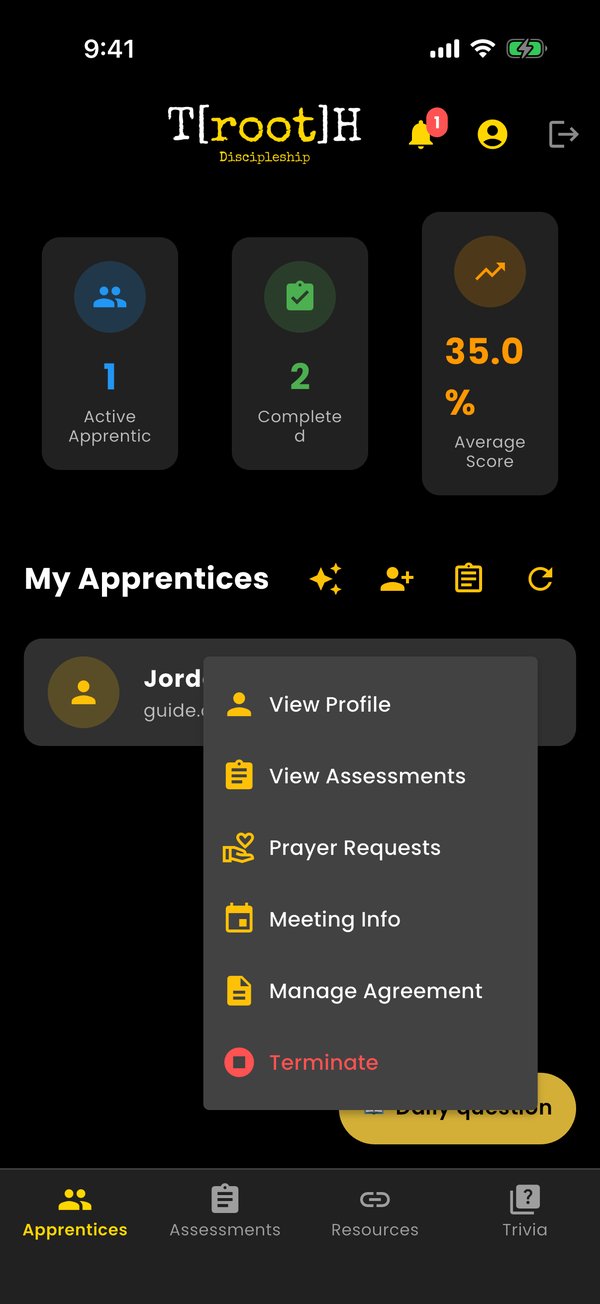
Tap the ⋮ menu on an apprentice to view their profile, open their assessments, read the prayer requests they've shared, set meeting info, manage your agreement, or end the mentorship.
Mentorship Agreements
Set clear expectations together
- Choose Manage Agreement from the apprentice menu
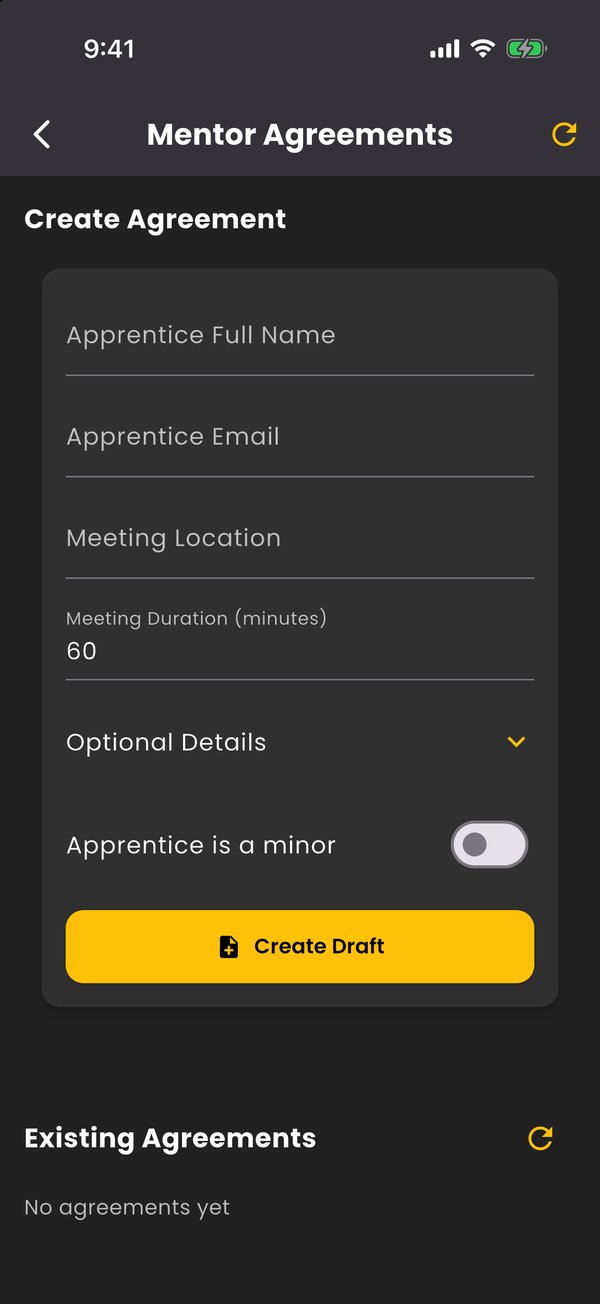
- Enter the apprentice's name and email, where you'll meet, and how long, plus any optional details
- If the apprentice is a minor, turn that on to require a parent's signature
- Tap Create Draft, review it, and send it. You'll see its status as each person signs
Reviewing Assessments
Understand where your apprentice is
- Open the Assessments tab and tap a submission
- Answers: every response, with correct multiple-choice answers marked
- Report: health score, priority focus, strengths and growth areas, biblical knowledge, spiritual insights, a four-week plan, and conversation starters
- Notes: keep your own notes for your next conversation
- Use Email report or Export PDF to keep a copy
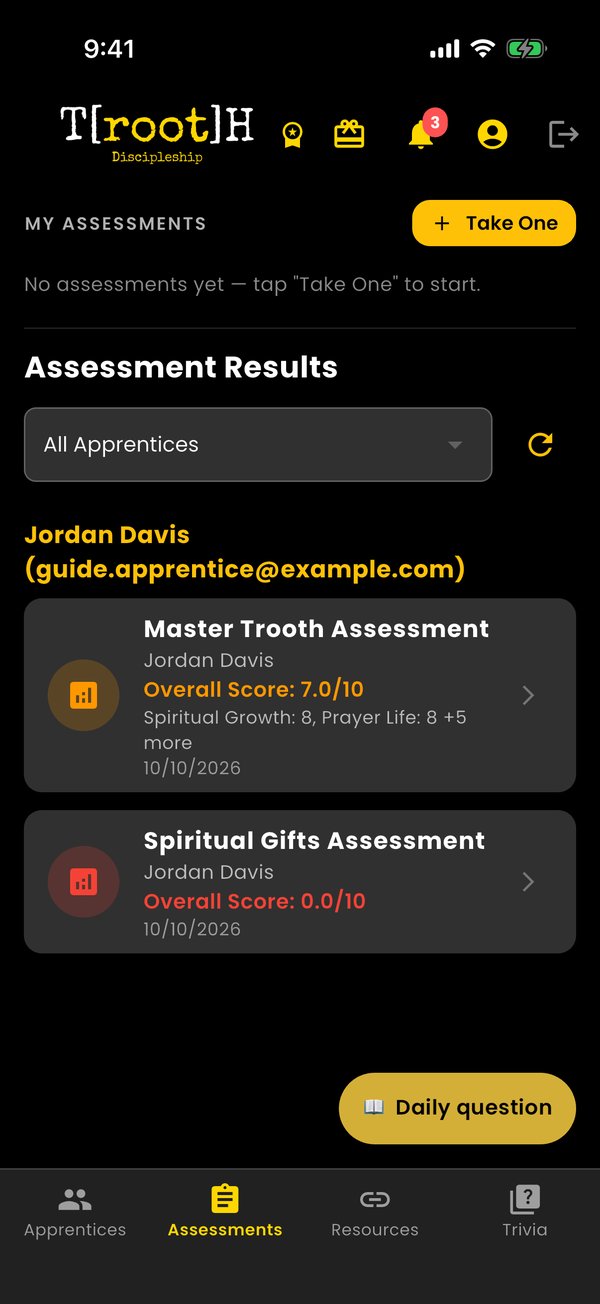
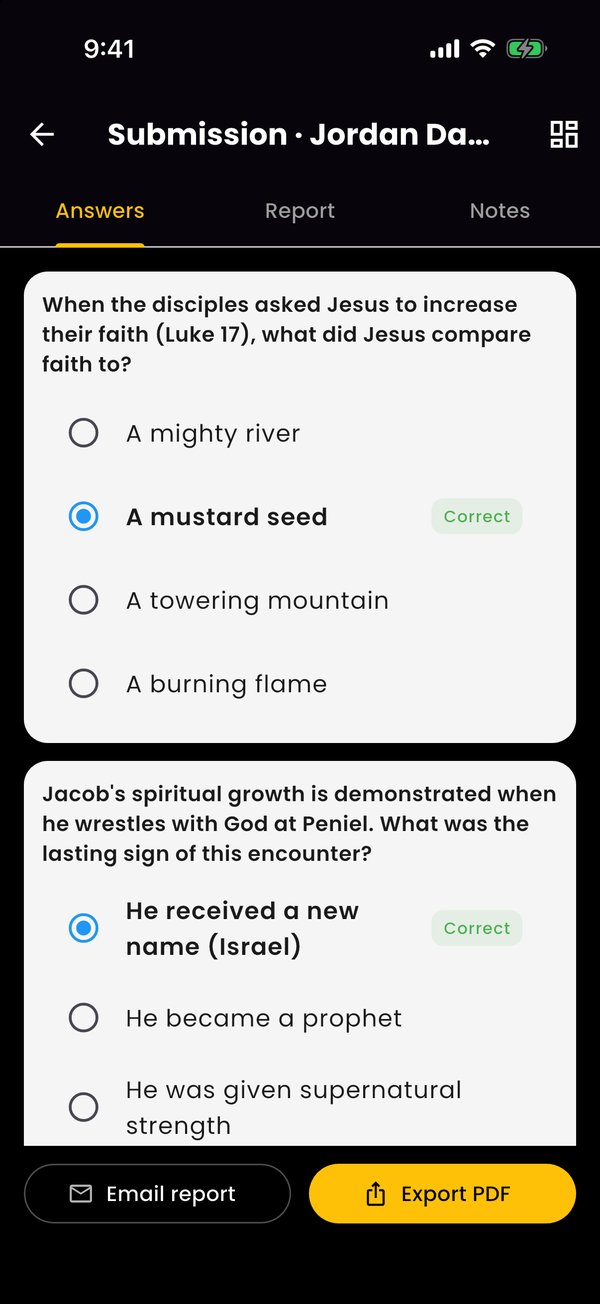
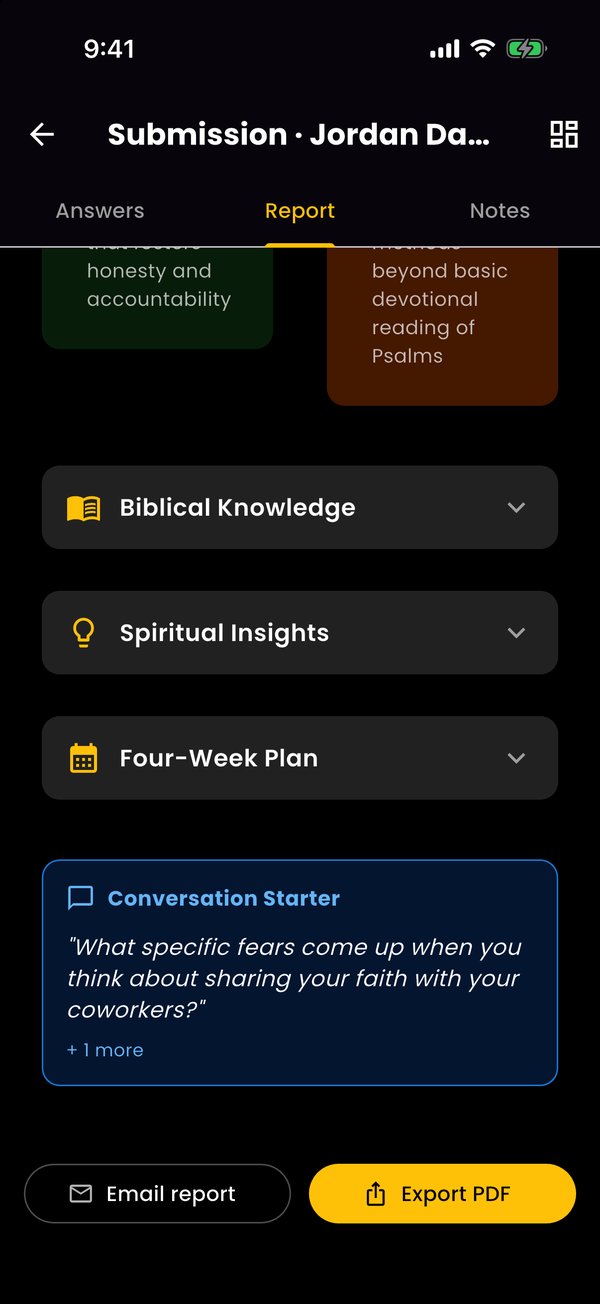
Premium mentors can tap View Full Premium Report for the complete AI report: an executive summary, strengths and growth areas with root causes and evidence, and a 12-week growth pathway you can walk through together.
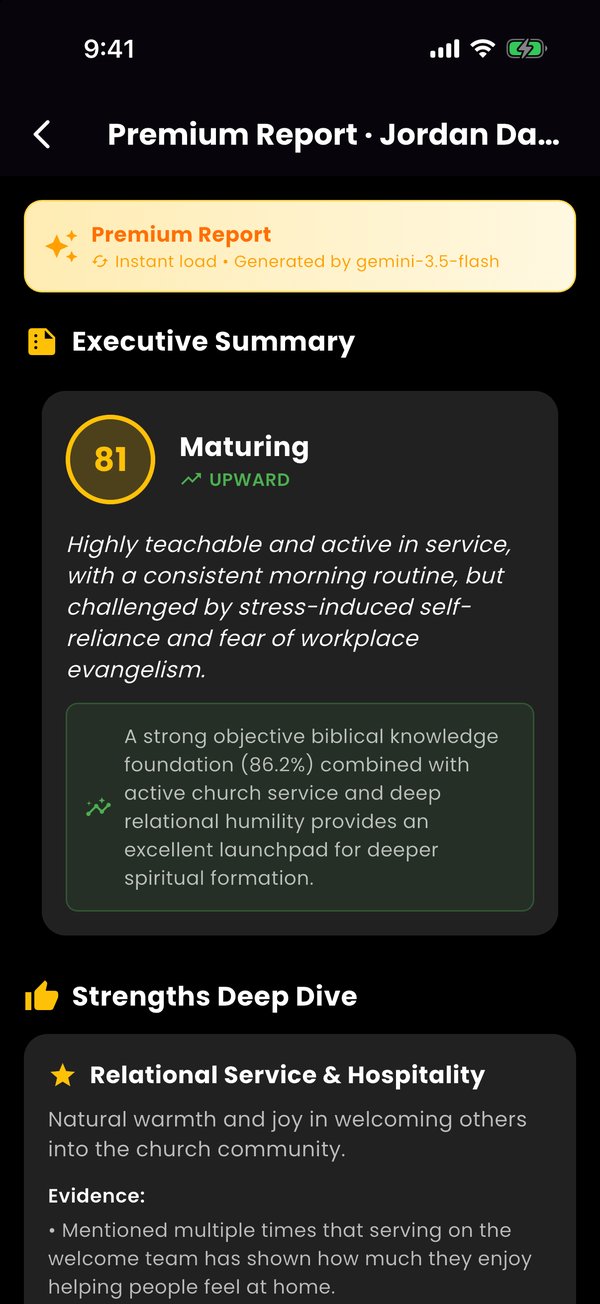
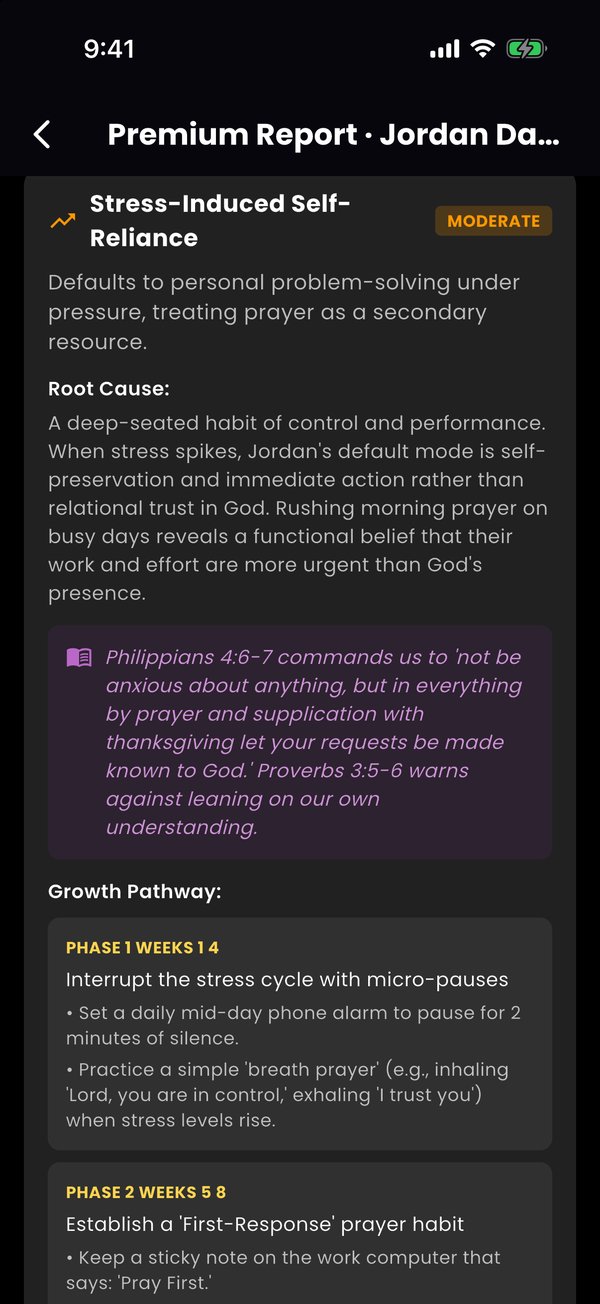
Spiritual Gifts
Help apprentices serve with their gifts
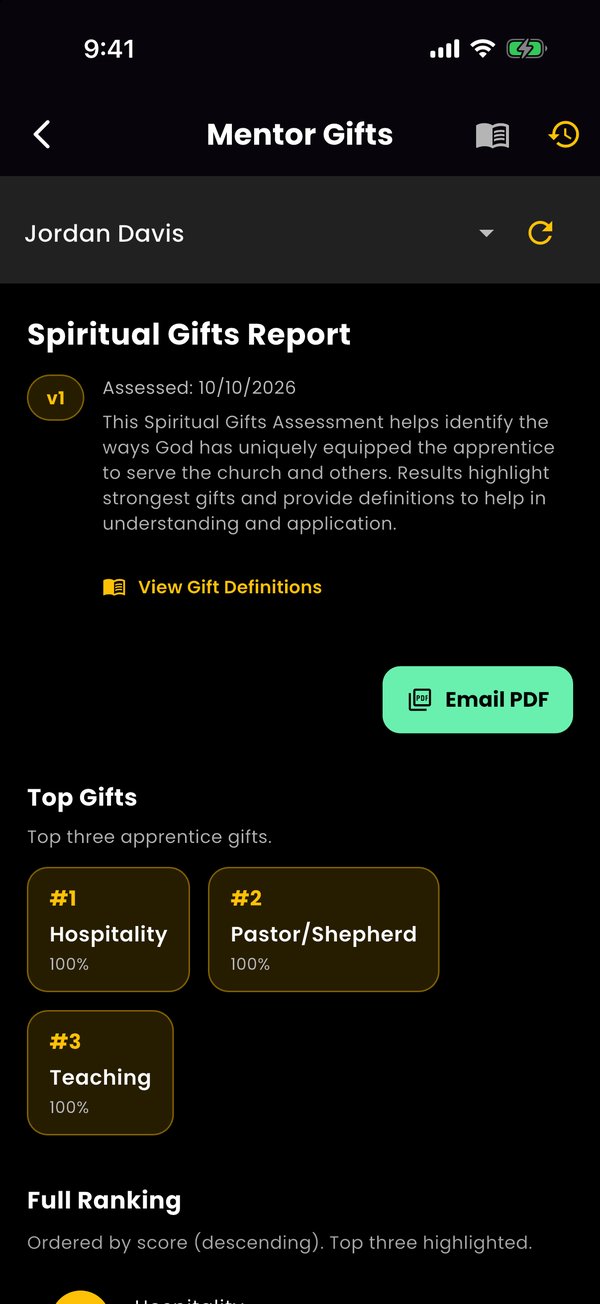
Tap the sparkle icon next to My Apprentices and pick an apprentice to see their top gifts, the full ranking, and gift definitions. Tap Email PDF to send yourself a copy.
Shared Prayer Requests
Pray alongside your apprentice
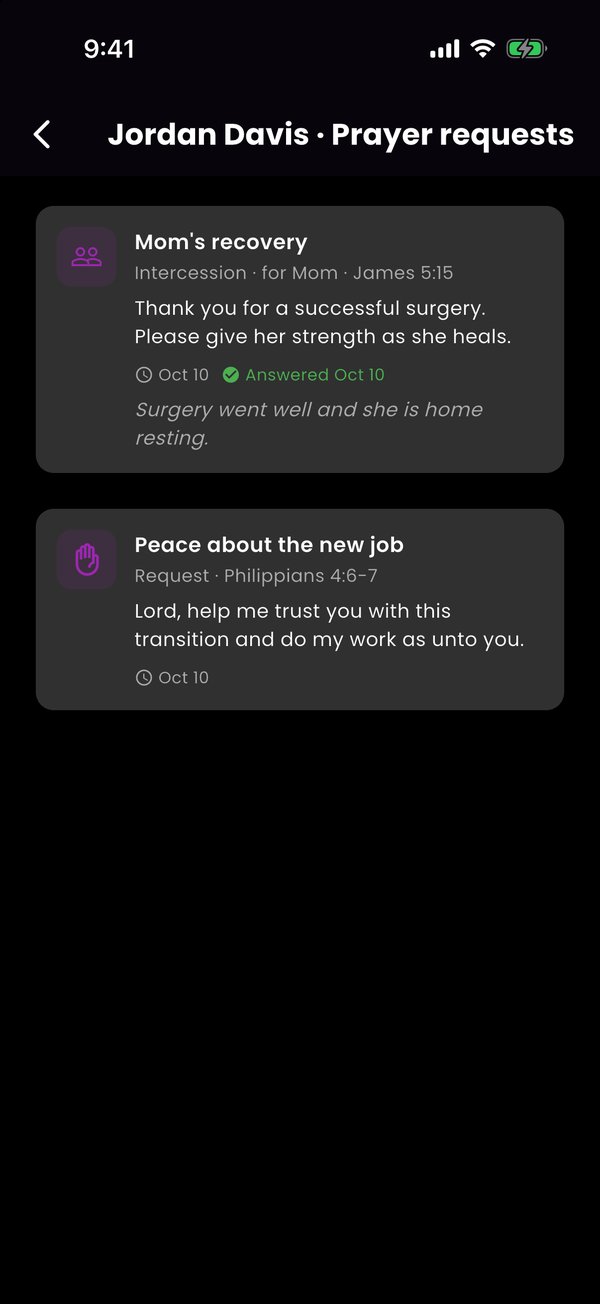
Choose Prayer Requests from the apprentice menu to see the prayers they've chosen to share with you, including answered prayers.
Mentor Resources
Guides and weekly tips for mentors
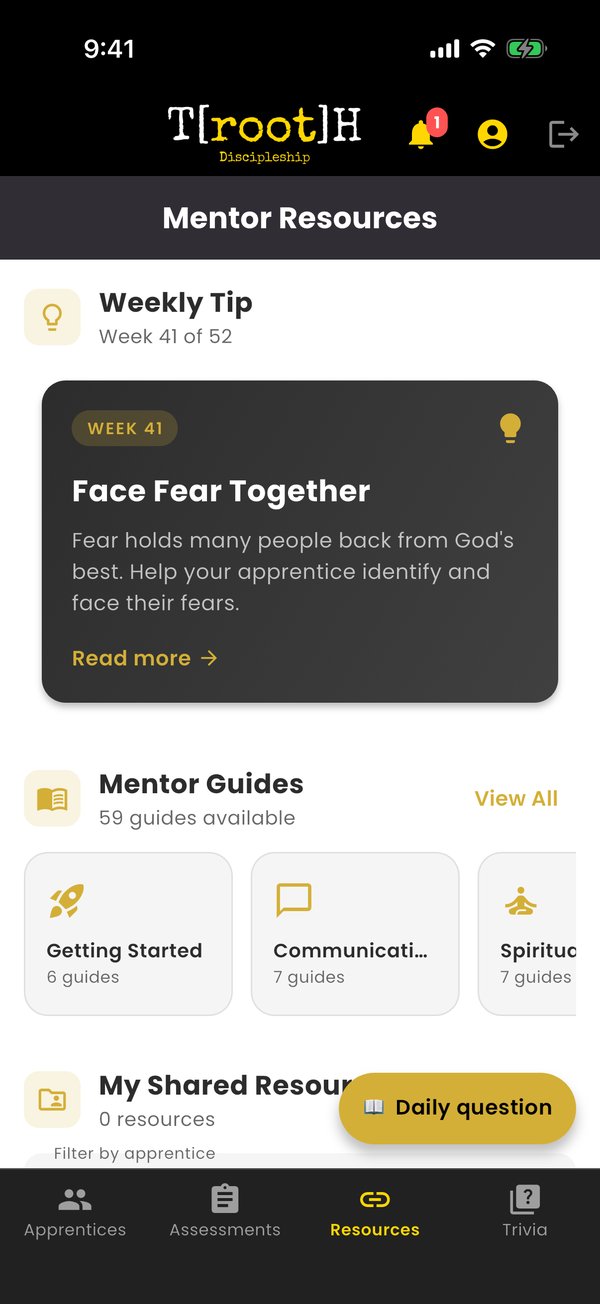
The Resources tab has a weekly mentoring tip, mentor guides by topic, and resources you've shared with apprentices.
Your Profile & Premium
Upgrade and gift seats
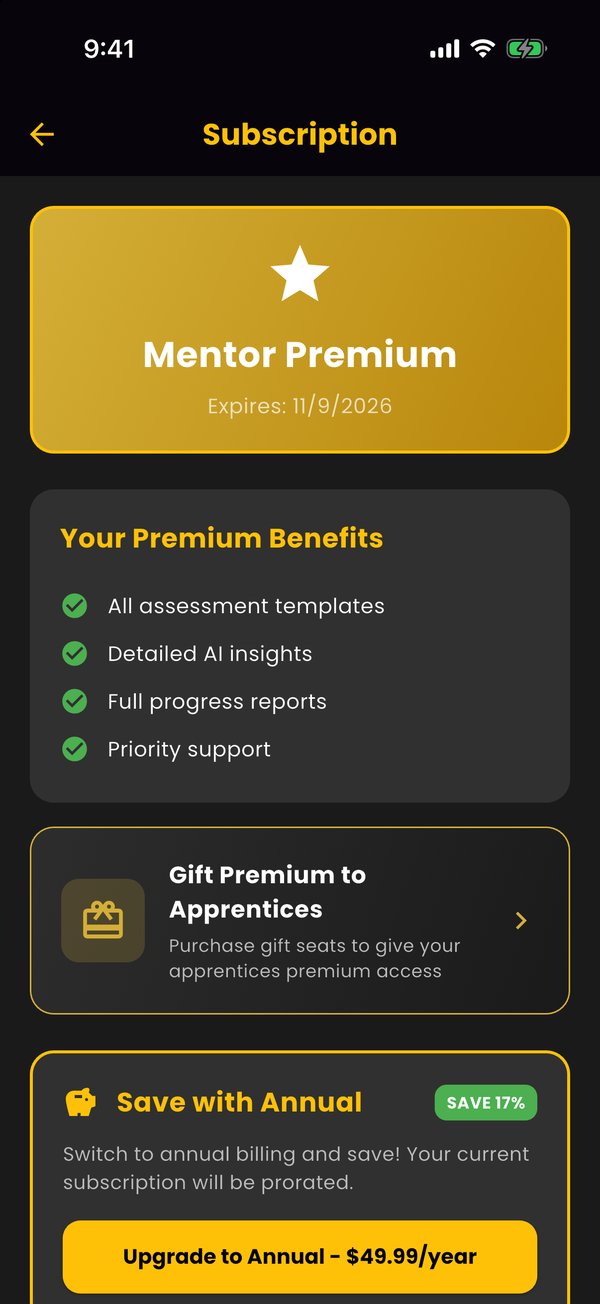
Tap Subscription in your profile to upgrade to Mentor Premium:
- Unlimited apprentices
- Full Premium reports for each apprentice
- Custom assessment templates for your ministry
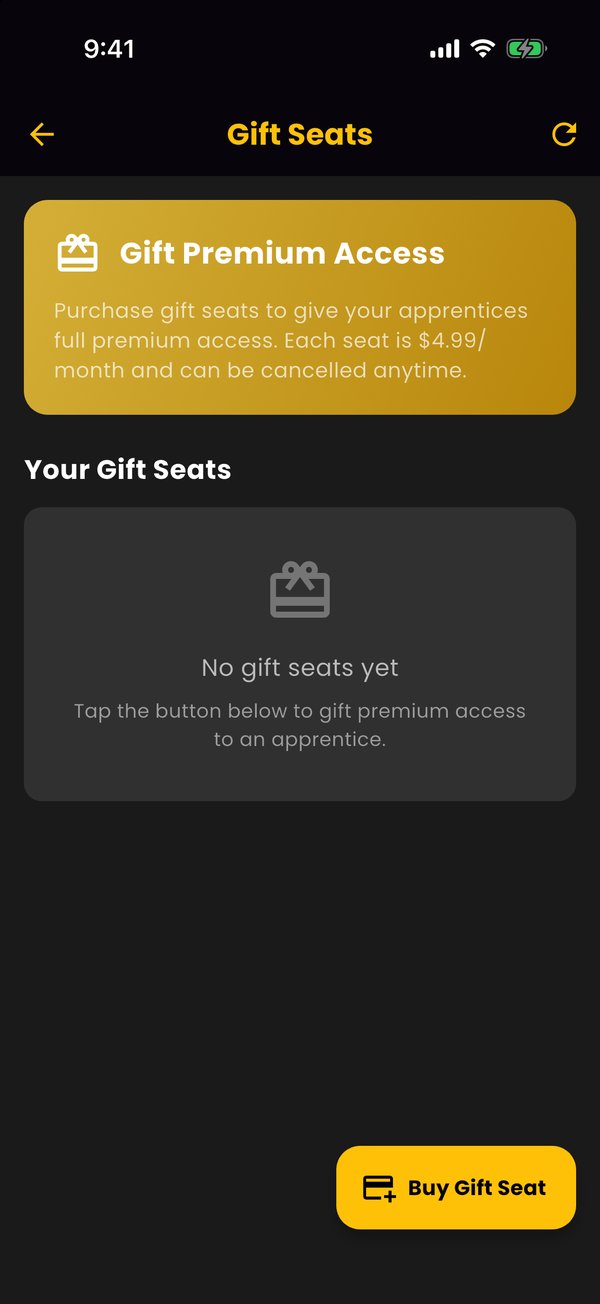
- Gift Seats: tap the gift icon at the top of your dashboard, then Buy Gift Seat to give an apprentice Premium access
Getting Started
Create your account and understand the app
Download T[root]H Accountability from the App Store or Google Play. When you open the app:
- Sign up with your email address or use Google/Apple sign-in
- Complete registration by entering your name and phone number
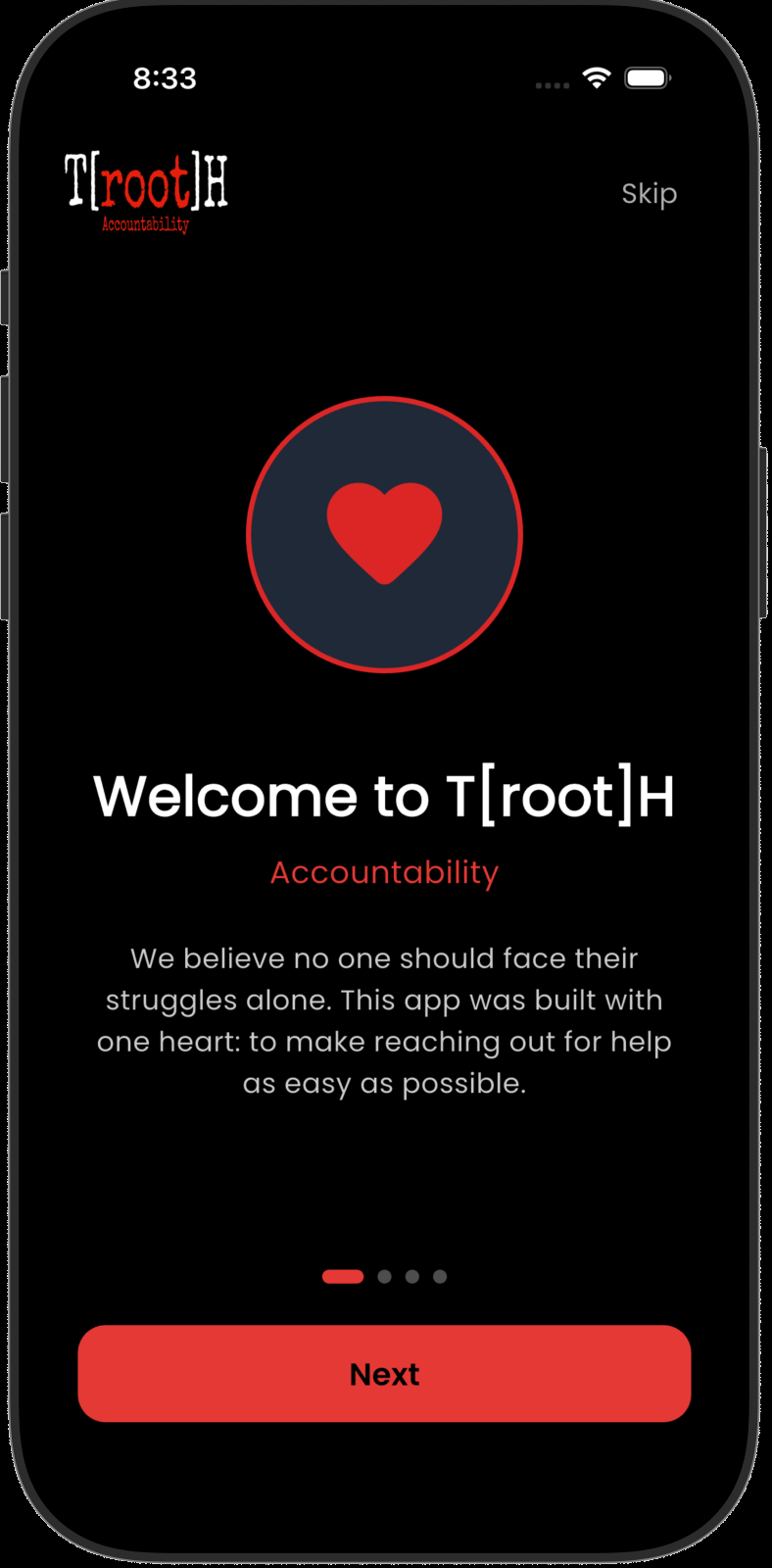
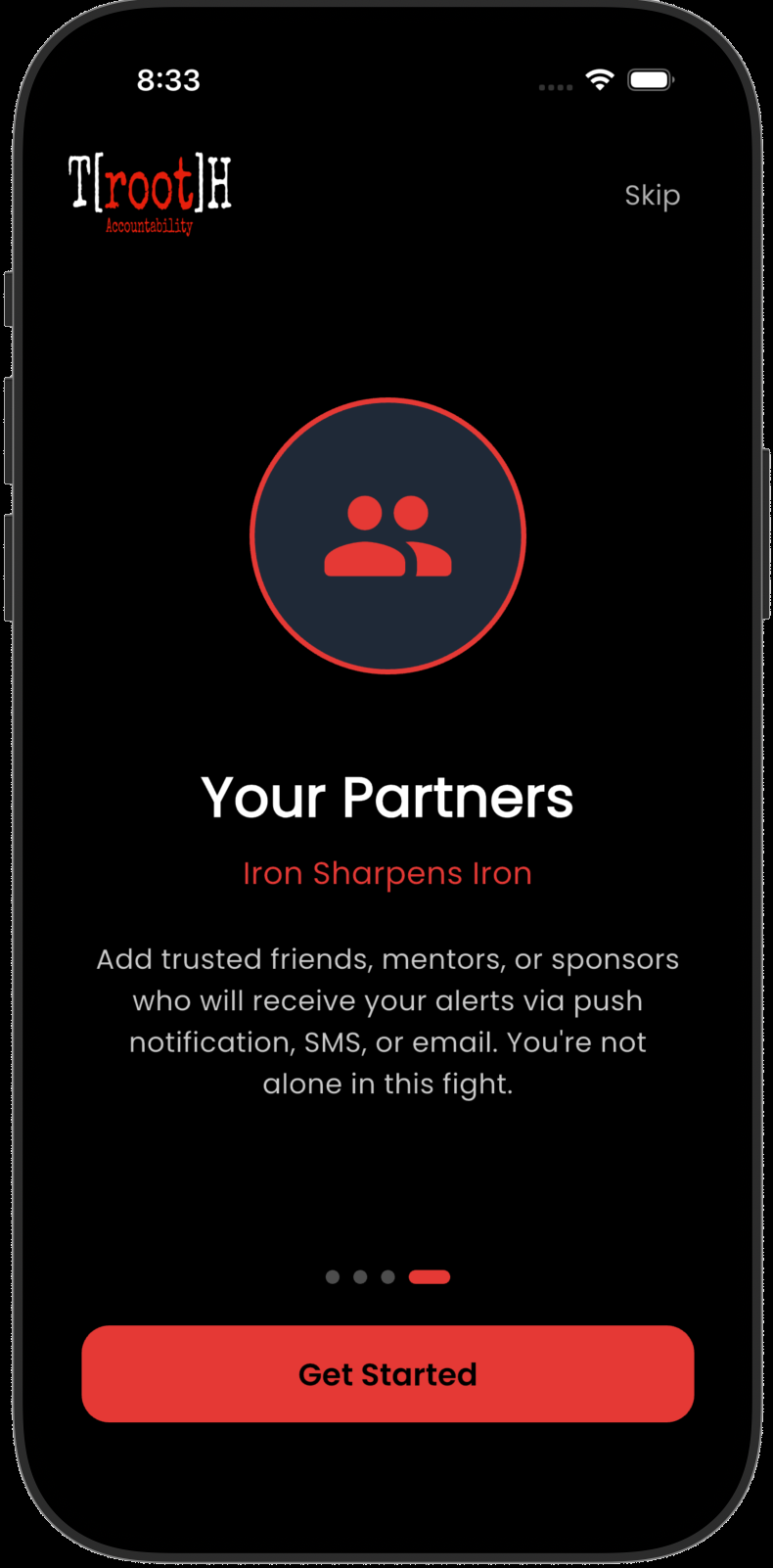
- You'll see a welcome screen explaining how the app works
Your Home Screen
The one-tap HELP button and dashboard
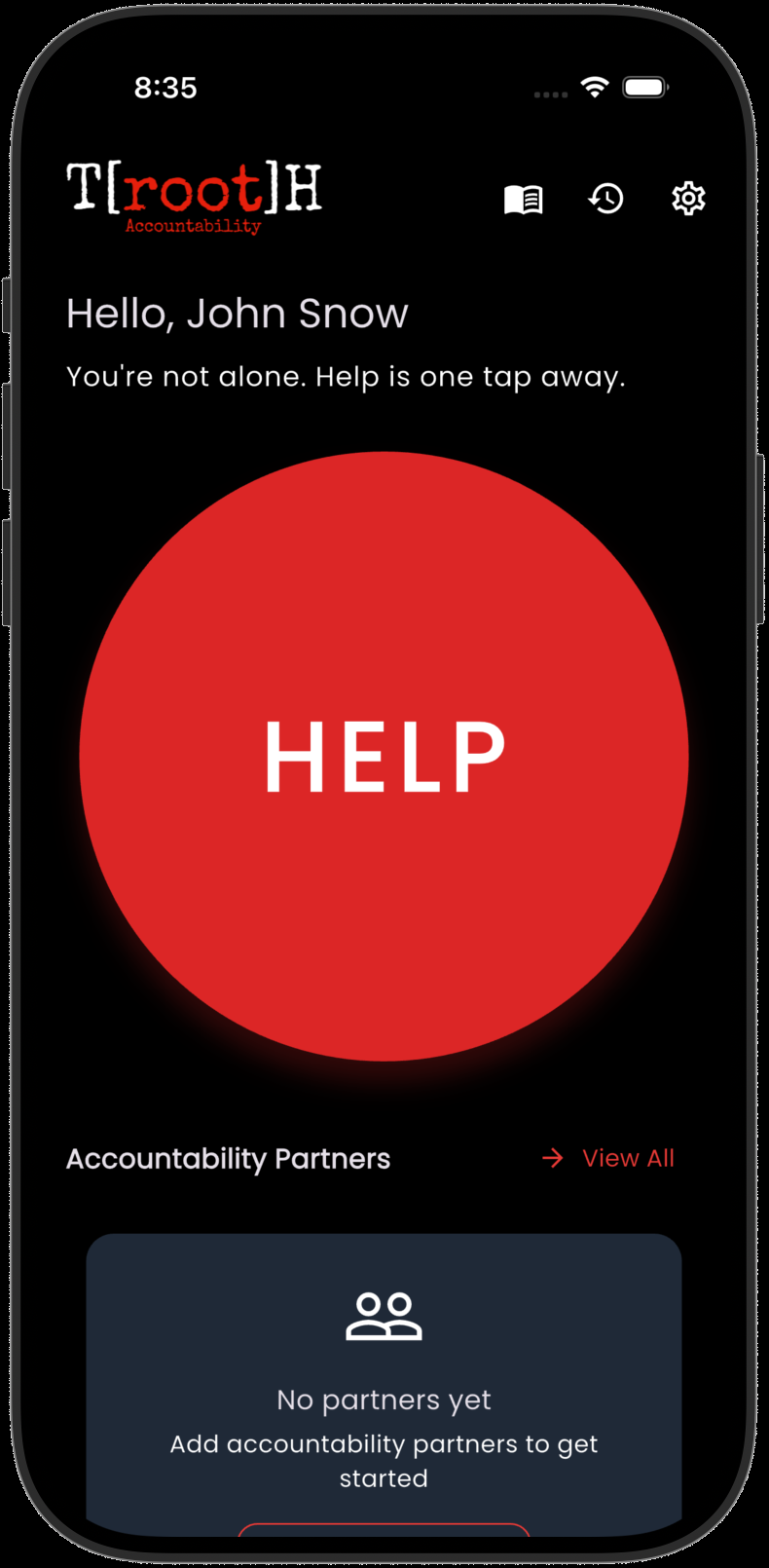
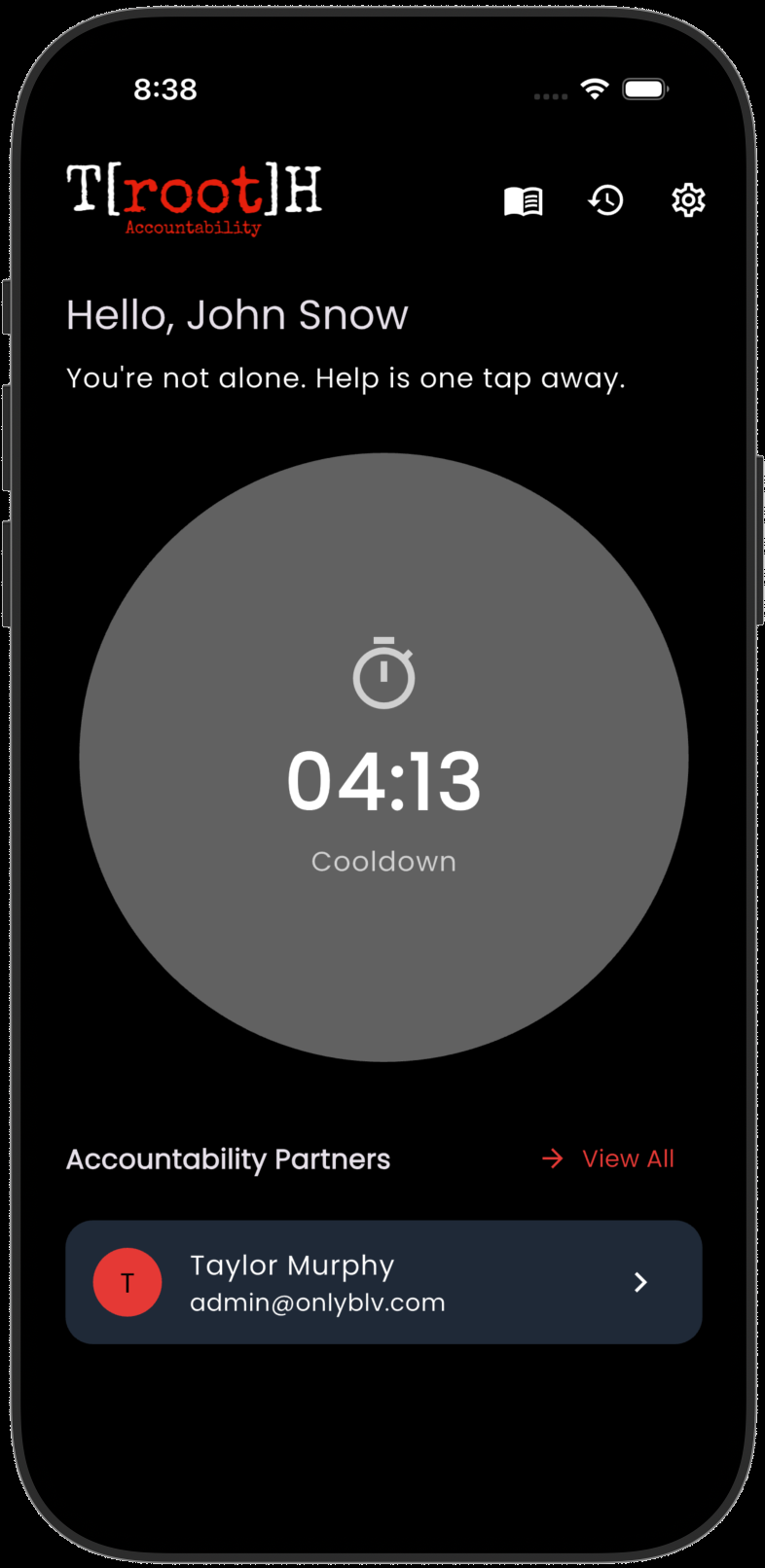
Your home screen is designed for one purpose: getting help fast. Here's what you'll see:
- A large HELP button front and center—tap it when you need accountability support
- Navigation tabs at the bottom for Partners, Alerts, and Resources
- Your profile and settings in the top corner
Adding Accountability Partners
Build your support network
Before you can send a help alert, you need to add at least one accountability partner:
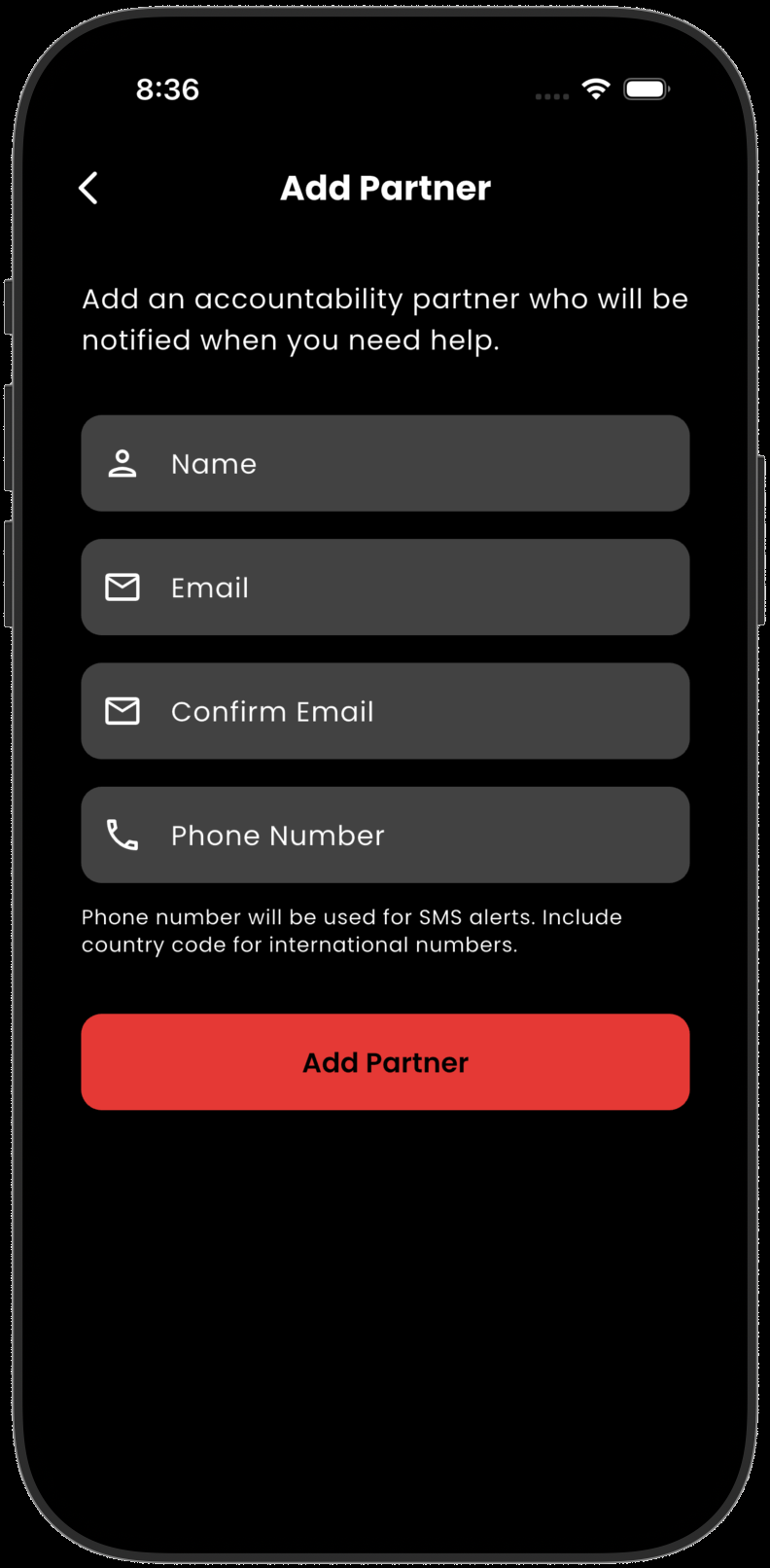
- Go to the Partners tab and tap "Add Partner"
- Choose from your contacts or enter their details manually
- Enter their name, email address, and phone number
- Tap "Add Partner" to save
Sending a Help Alert
Reach out when you need support
When you're struggling and need immediate accountability support:
- Go to your home screen
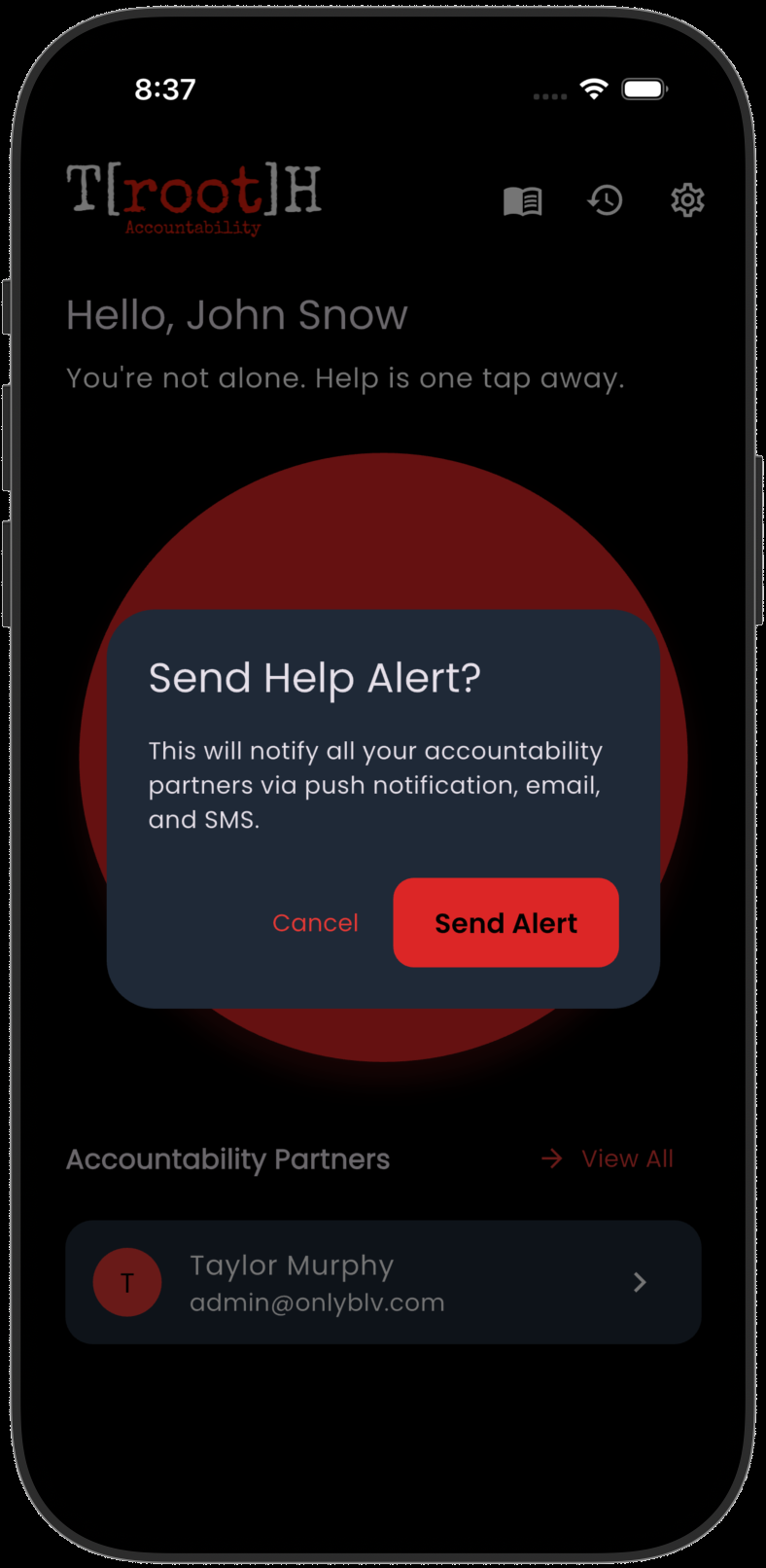
- Tap the large HELP button
- Confirm that you want to send the alert
- All your accountability partners will be instantly notified via push notification, email, and SMS
Partner Responses
Know when help is on the way
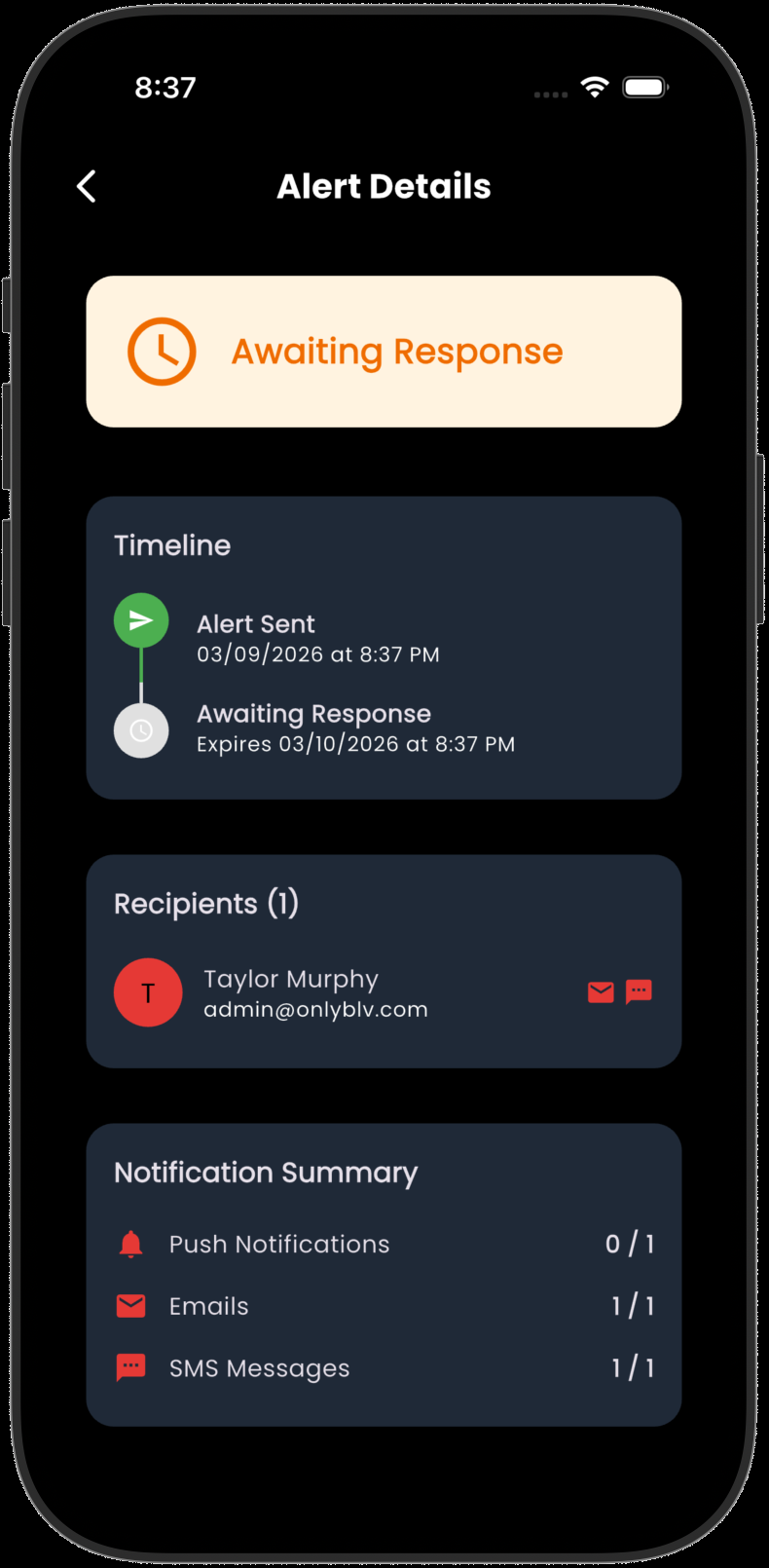
After you send a help alert, you'll be able to see who responds:
- Partners can tap "I Got It" in the app, reply to the email, or respond via SMS
- You'll receive a notification when a partner responds
- The alert details screen shows the response status of each partner
Recovery Resources
Faith-based articles and guidance
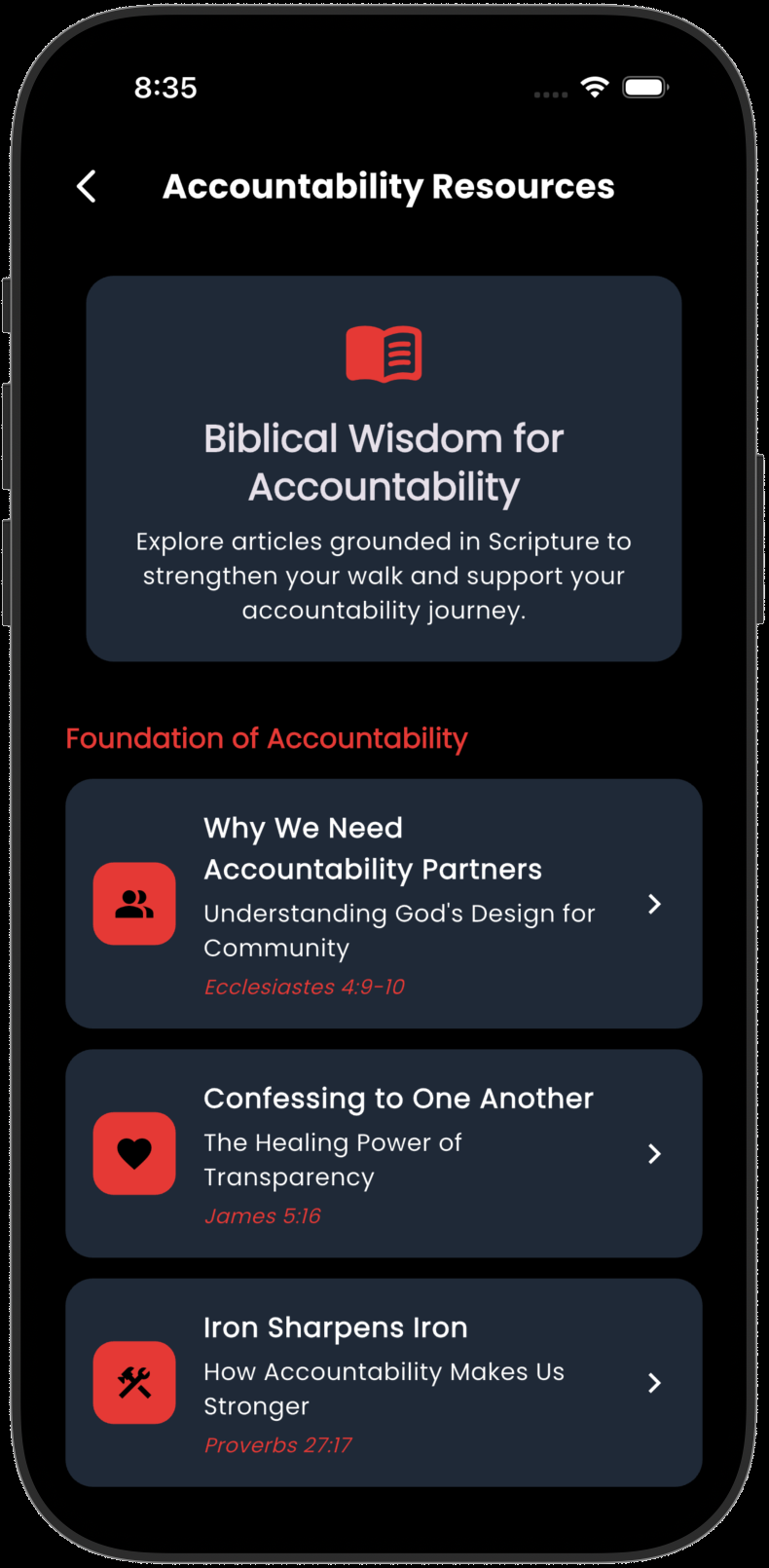
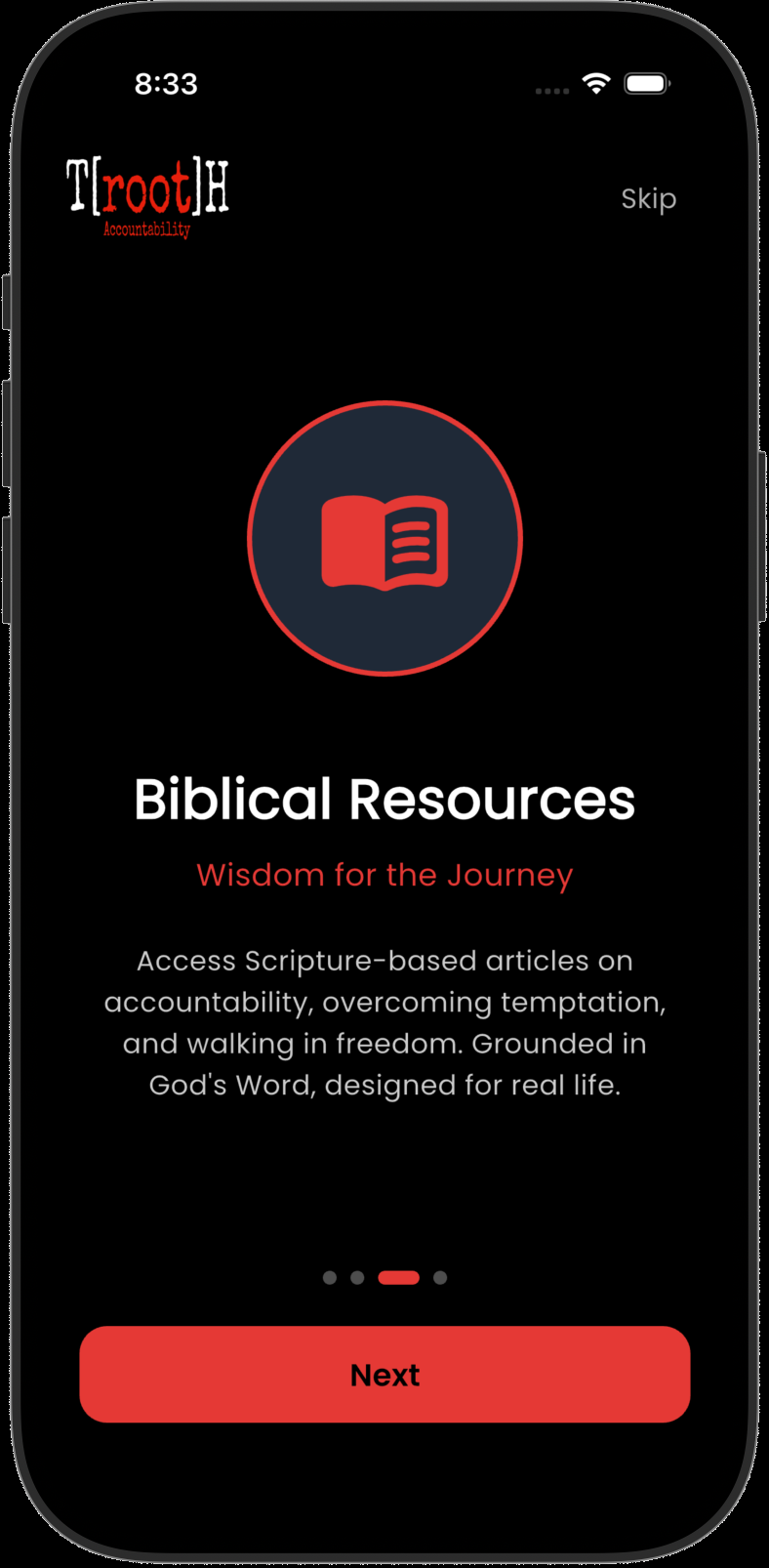
The Resources section provides faith-based content to support your accountability journey:
- Tap the Resources tab at the bottom of the screen
- Browse articles and guides on topics like temptation, recovery, and spiritual growth
- Read biblical guidance and scripture-based encouragement
- Content is updated regularly with new material
Getting Started
No account needed
Download T[root]H Armory from the App Store or Google Play and open it. There's nothing to sign up for. Everything works offline.
- Today: a new verse every day, with a link to its topic
- Start here: the introduction to the directory
- Favorites and all Categories below
- Top icons: Search, Saved, and Settings
![T[root]H Armory home screen](guides/armory/home.jpg)
Exploring a Topic
Find the words you need
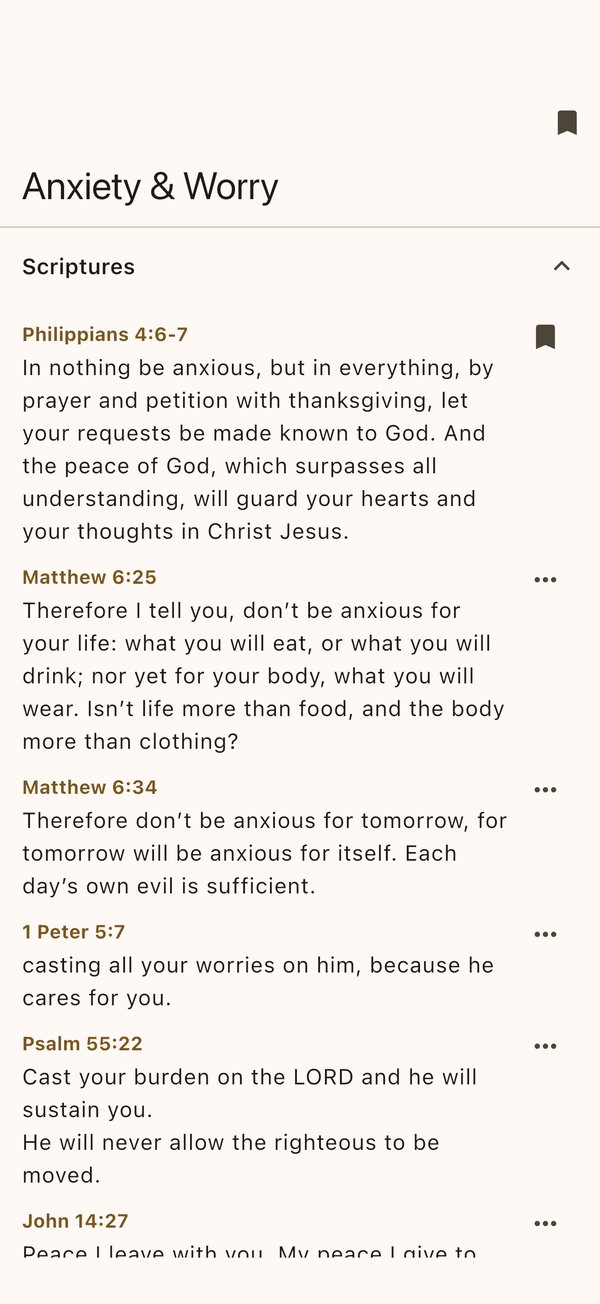
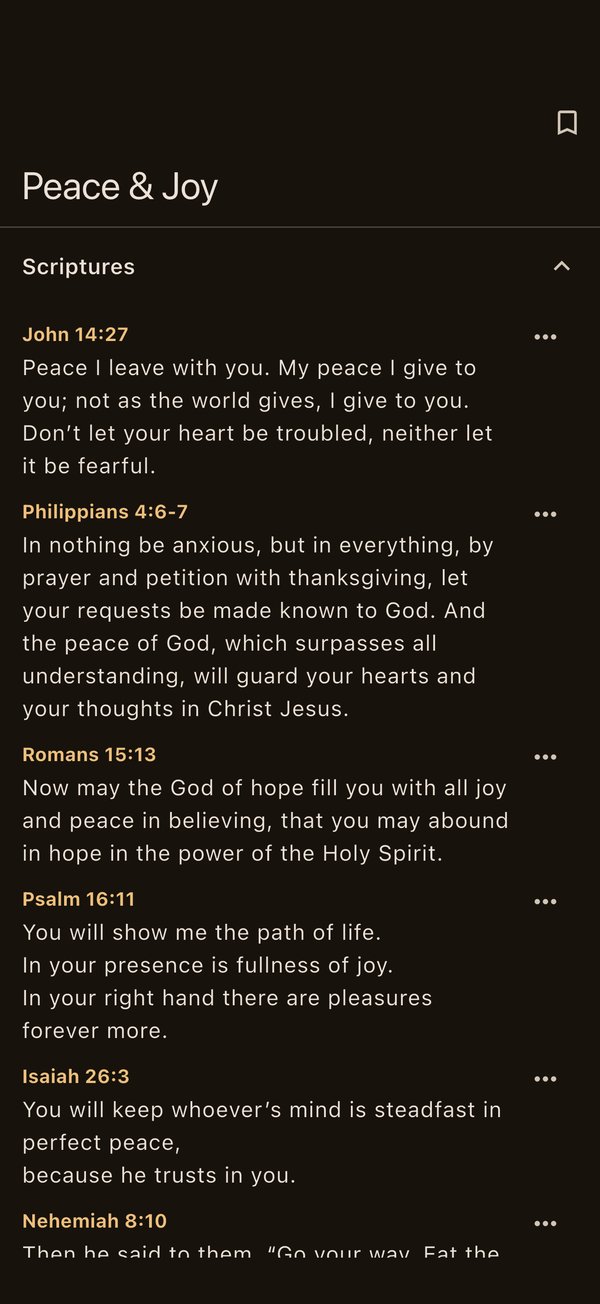
Tap any of the 32 topics, like Anxiety & Worry or Grief & Loss. Each one includes:
- Scriptures from the World English Bible
- A Bible Story that shows the truth in action
- A Prayer and a T[root]H Takeaway to carry with you
- Sermons from the ONLY BLV YouTube channel
Tap the bookmark at the top to add the topic to your Favorites.
Searching
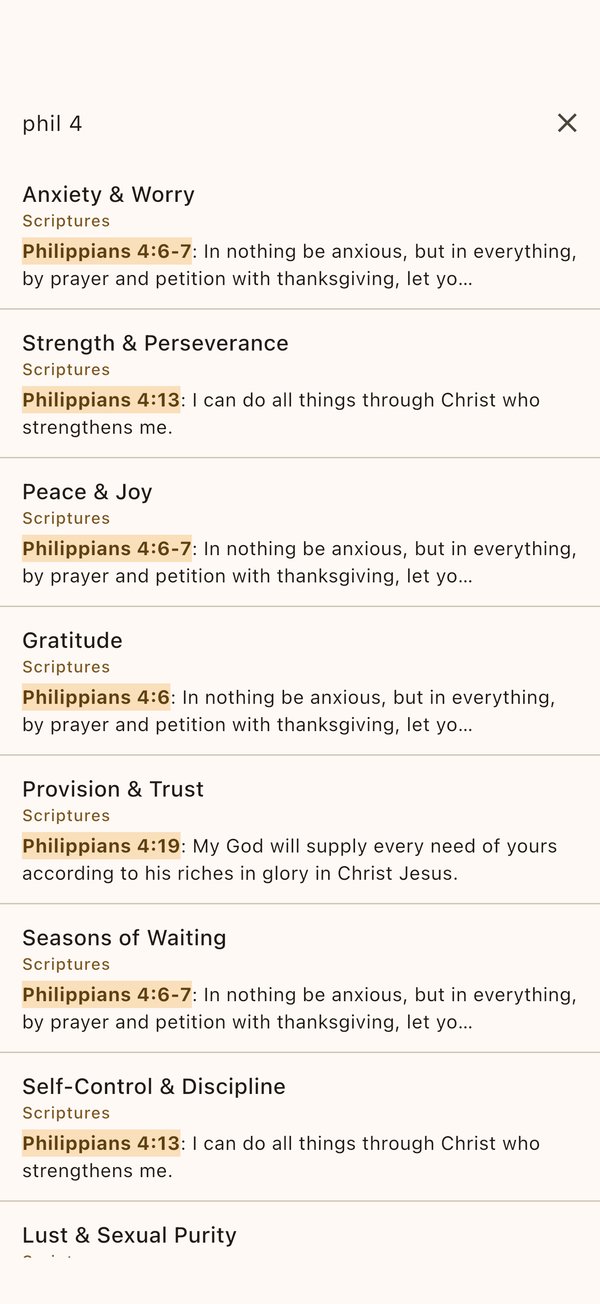
By topic, word, or verse
Tap the magnifier and type a topic, a word, or a reference. References work the way you'd say them: "phil 4" or "psalm 23" goes straight to the verses.
Save, Personalize & Take Notes
Make it yours
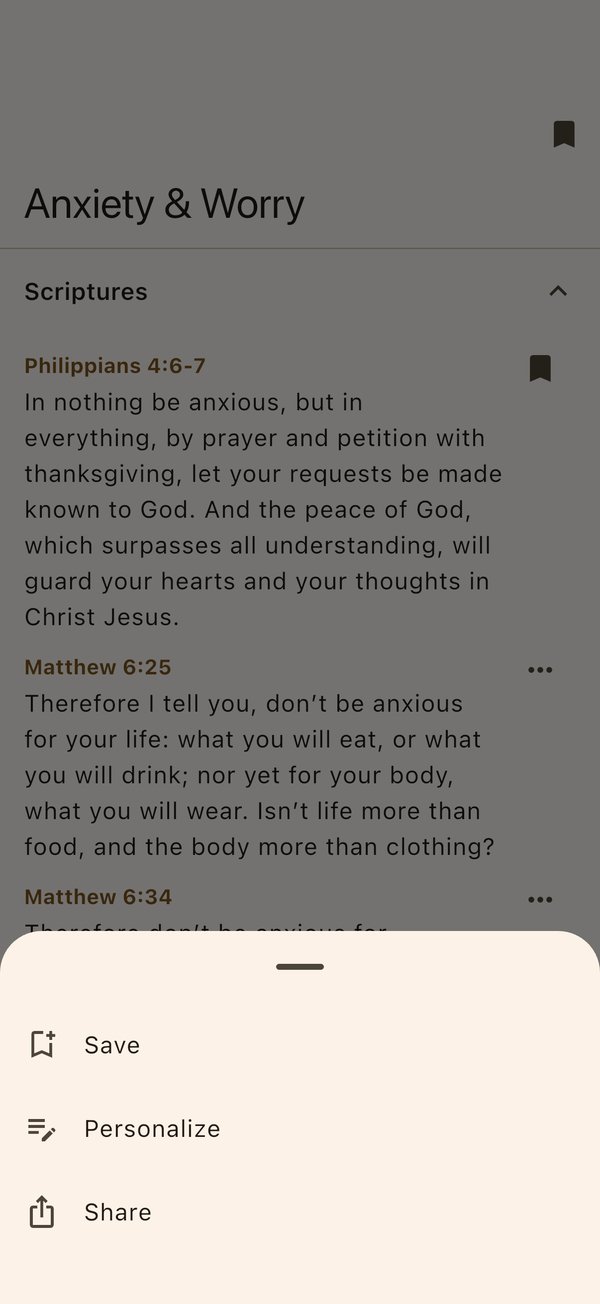
Tap the ••• next to a verse (or long-press it) to Save, Personalize, or Share.
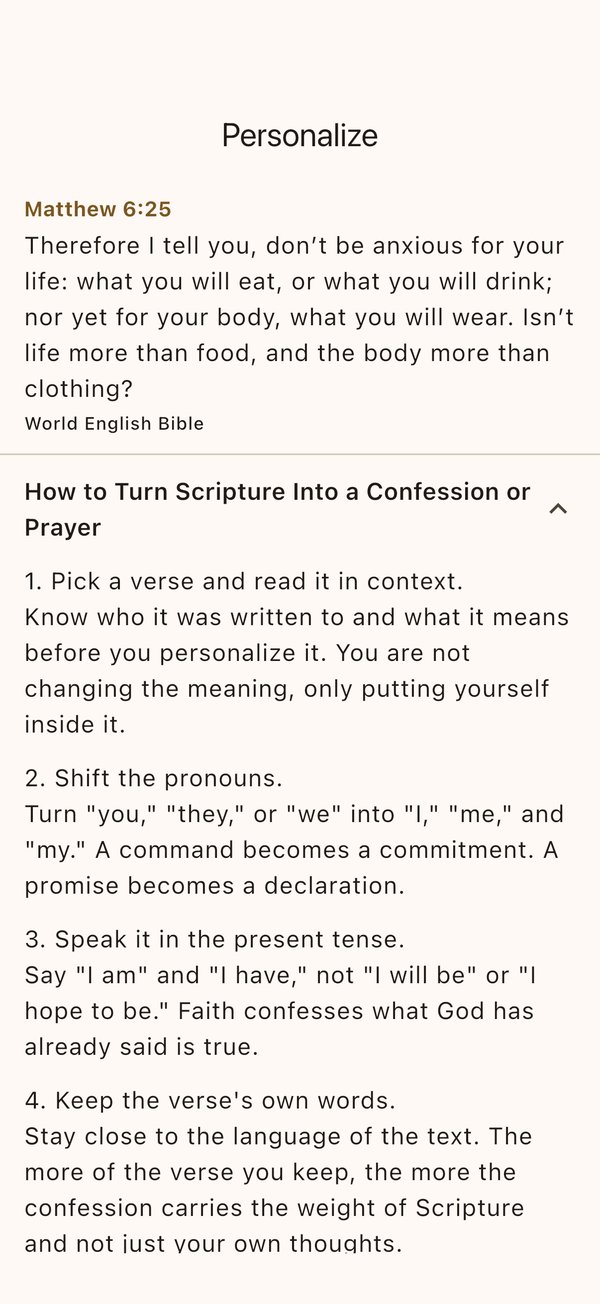
- Personalize rewrites a verse in your own words as a confession or prayer, with a six-step guide to help you pray Scripture
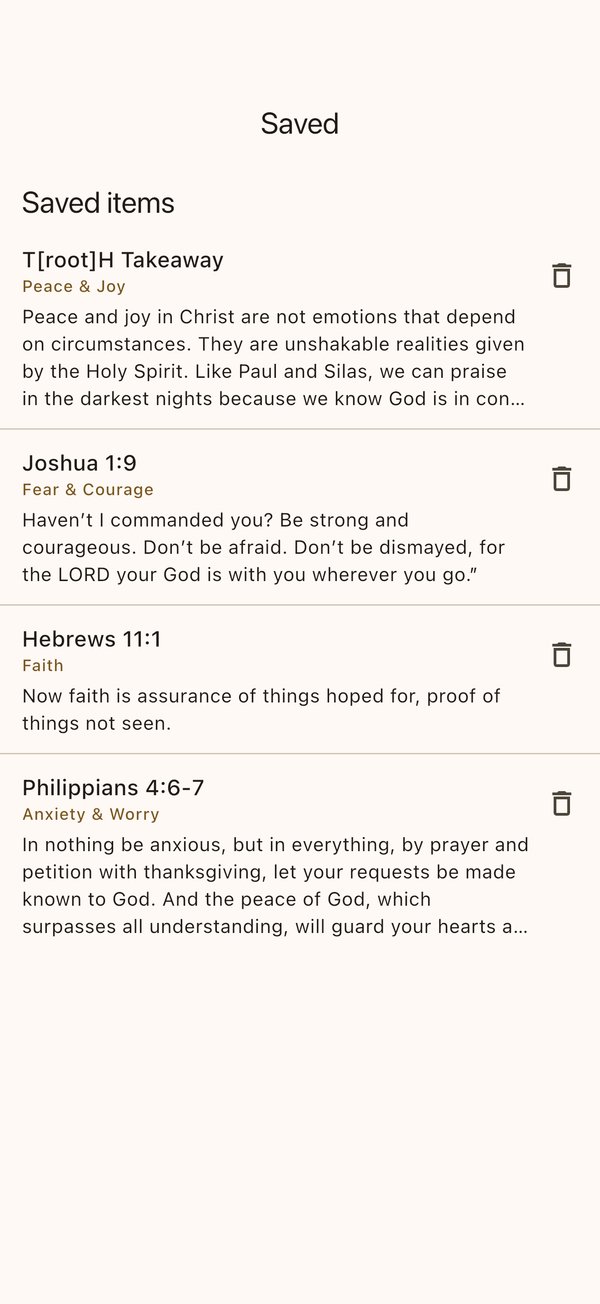
- Save verses, prayers, and takeaways, and write notes on any topic
- Everything is listed under the bookmark icon and stays private on your device
Sharing
Send what helped you
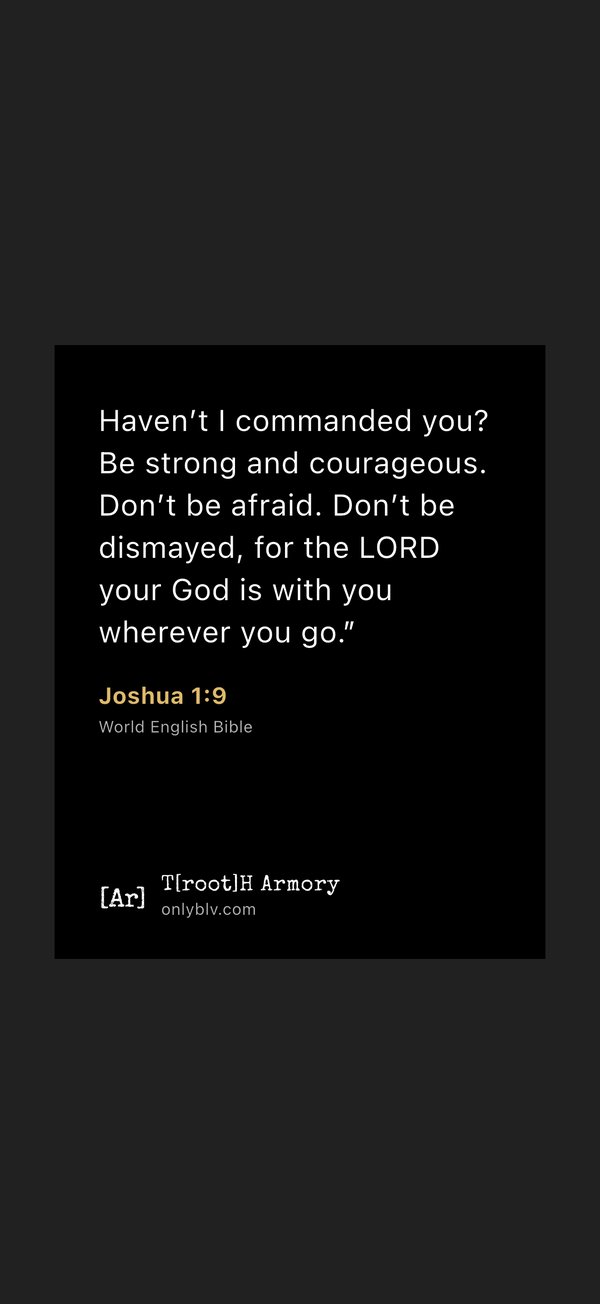
Choose Share on a verse or takeaway to turn it into a clean image card you can send by text or post.
Settings & Daily Reminder
Read your way
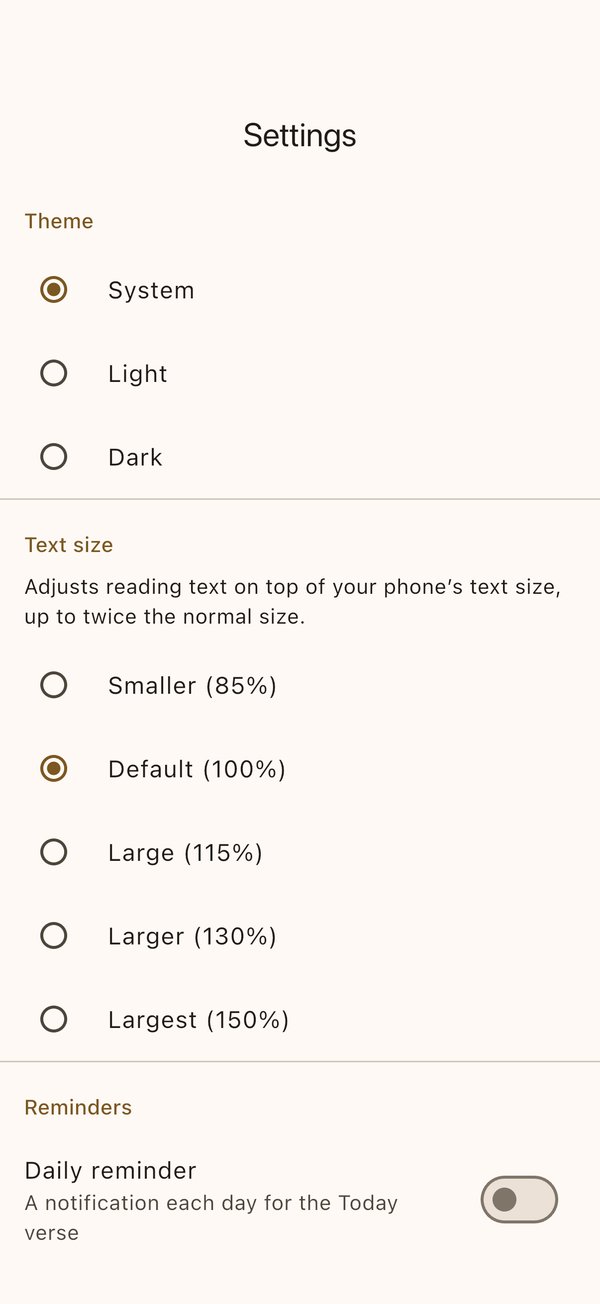
Tap the gear to choose light, dark, or system theme, adjust text size, and turn on a daily reminder for the Today verse at the time you pick. You can also turn off anonymous usage reports here.
Get Help
Support when you need it
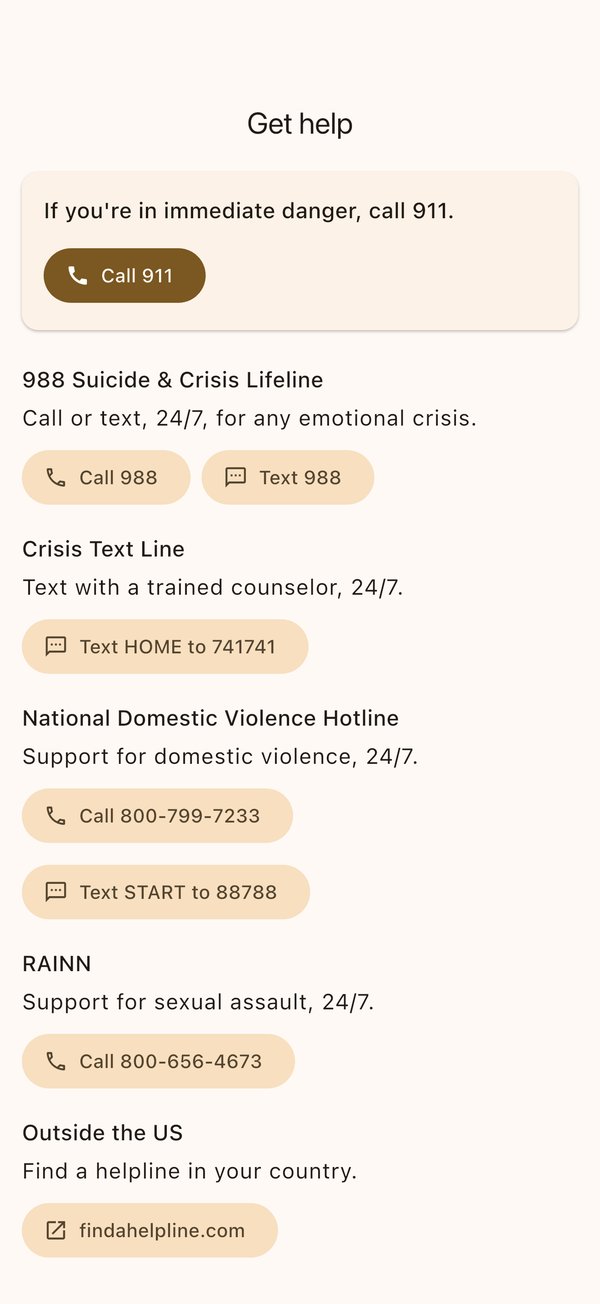
Topics like Anxiety & Worry and Depression & Despair include a Get Help card with crisis and support lines, and it's always one tap away in Settings. If you are in immediate danger, call 911.
T[root]H Armory is a devotional resource and is not a substitute for professional medical or mental health care.